
The uniform shop: items, stock, orders and hand-out
Sell uniforms to students: list the items and their prices, count stock, place an order that bills the student at once, and hand items out.
The uniform shop sells uniform items to students. An order is billed at once as its own invoice, and the student's parent pays it like any other fee. You can also keep a stock count.
Before you start
- Create a fee type named Uniform (see Fee types and installments). Items point to it so that discounts can target uniforms and reports group them.
Items
Open Uniforms → Items. Each item shows its Price, Fee type, Stock and whether it is active. The Low or out of stock filter helps you reorder.

Click New uniform item:
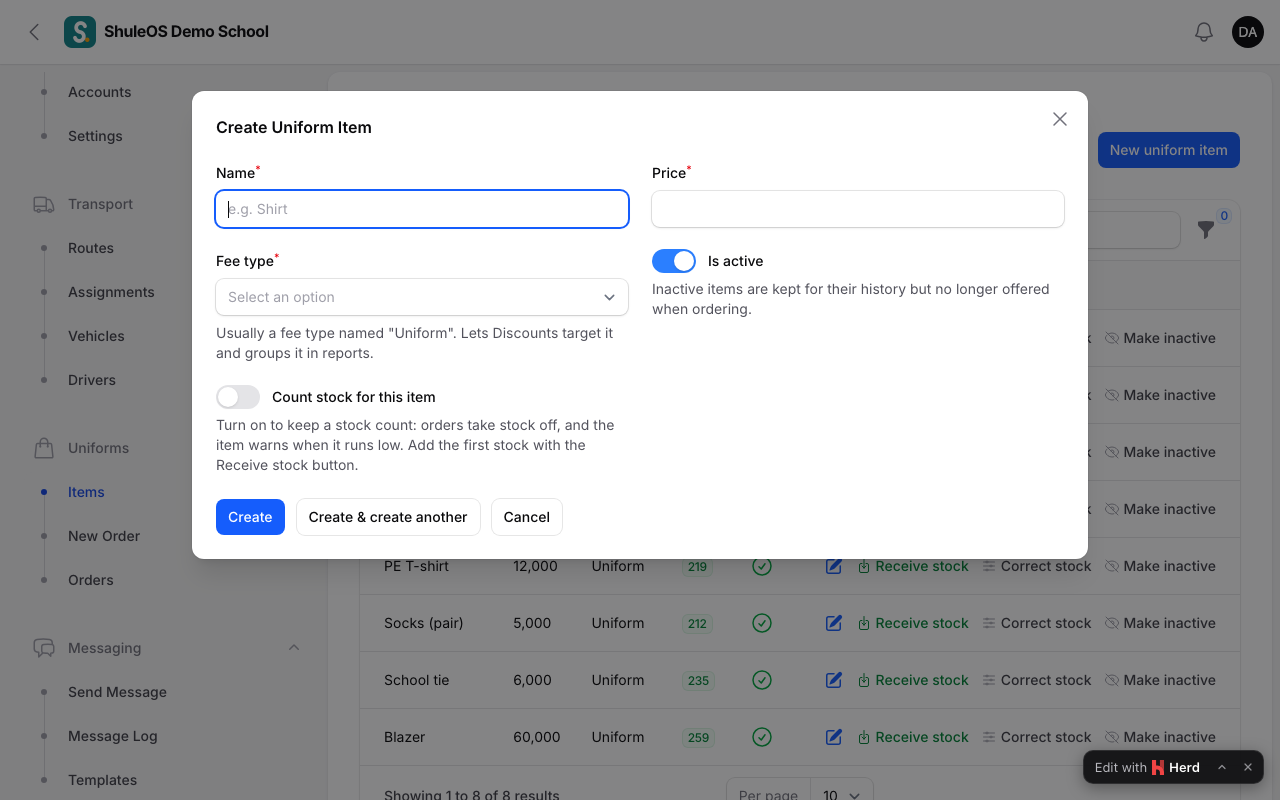
| Field | What to enter |
|---|---|
| Name | For example School shirt. It must be different from other items ("This school already has an item with that name."). |
| Price | What one costs. |
| Fee type | Usually Uniform. |
| Active | Inactive items are kept for history but no longer offered when ordering. |
| Count stock for this item | Turn on to keep a stock count: orders take stock off, and the item warns when it runs low. |
| Warn when stock is at or below | The level at which it is flagged as low. |
Stock
| Action | What it does |
|---|---|
| Receive stock | New uniforms arrived from the supplier: enter the quantity, an optional cost per item and a note. It adds to the stock ("50 added: 255 in stock"). |
| Correct stock | After counting the shelf, enter how many are really there. The difference is recorded, with an optional reason. |
| Print stock sheet | A printable list of items and stock. |
Make inactive retires an item. Delete removes it, but only if it was never ordered. Import items loads many from a file.
Place an order
-
Open Uniforms → New Order.

-
Choose the Student and the Academic year.
-
A table lists the items with their Price. Enter the Quantity wanted of each. The Line total and the order total update.
-
Add any Notes.
-
Click Place order and invoice. You see "Order invoiced: INV-…", and can view it under Fees → Invoices.
If an item is short you see "Not enough stock", with how many are left and how many were asked for. If you choose nothing you see "Choose a student, a year, and at least one item with a quantity".
The order is billed immediately, not with a term's invoice. The parent pays it through Fees → Record Payment or Collect Fees, like any other bill (see Collect fees, record payments and print receipts).
Orders and handing out
Open Uniforms → Orders. Each order shows the Student, Year, Date, Items, Total, its Invoice, whether it is Paid, Owing or partly paid, and whether it is Collected, Part collected or not.

Filter by year, or Collection: Paid, waiting to be collected, Not fully collected yet, or Collected.
- Hand out: when the student comes to collect, click it, tick or enter what is given ("2 of 3 already given"), and confirm. If the order is not fully paid you are warned "This order is not fully paid yet: TZS 20,000 is still owed." You see "3 item(s) handed out".
- View invoice opens the order's invoice.
The uniform report
Open Reports → Uniforms.
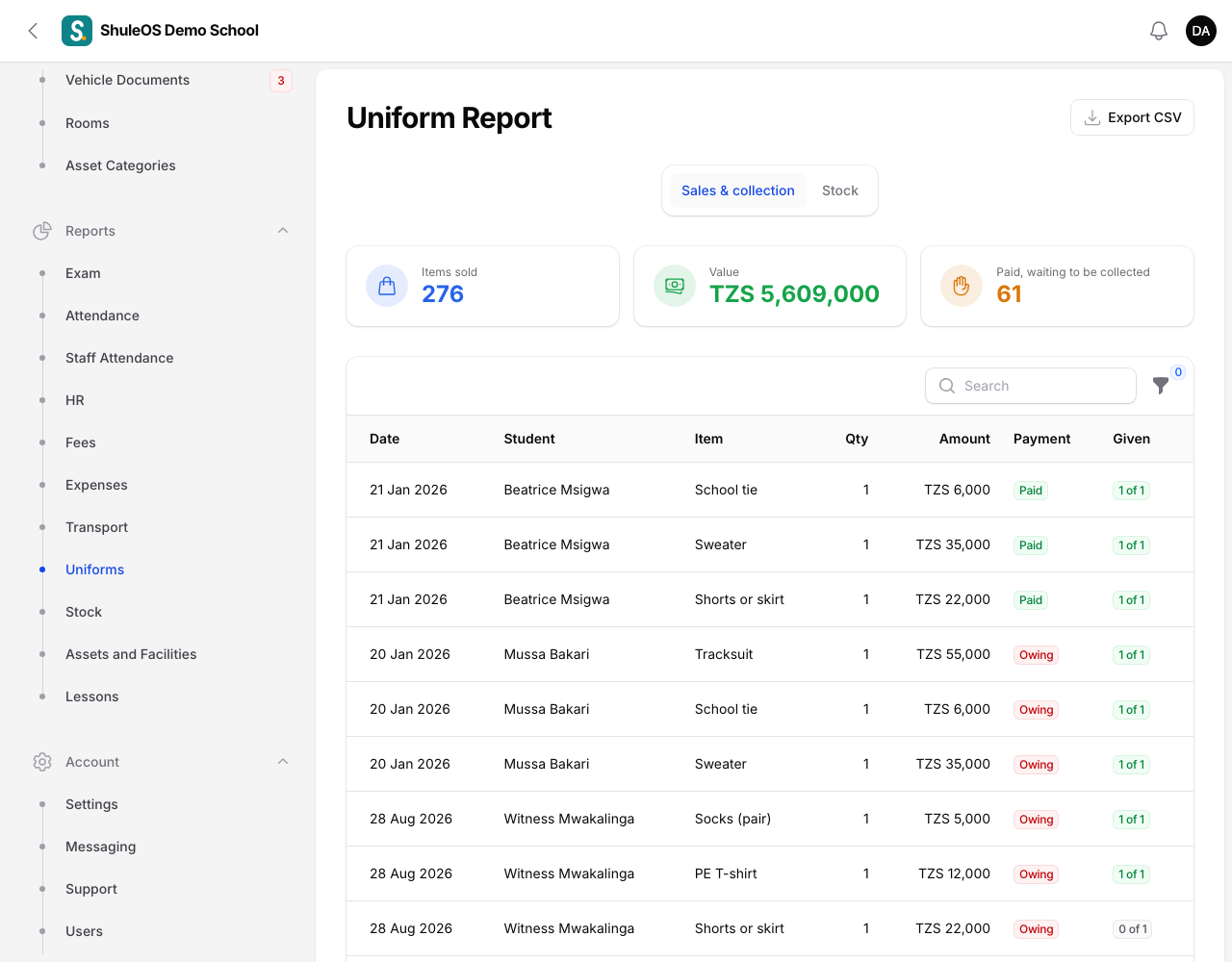
| Tab | What it shows |
|---|---|
| Sales & collection | Every item sold: date, student, item, quantity, amount, whether it is paid and whether it was given. Filter by Item, Collection and dates. |
| Stock | The stock of each item. |
Export CSV downloads it.
If something goes wrong
| What you see | What it means |
|---|---|
| Not enough stock | Receive stock first, or order fewer. |
| An item is missing when ordering | It is inactive. |
| The item cannot be deleted | It has been ordered. Make it inactive. |
| The parent says they paid | Check Fees → Payments for the student, then use Hand out. |
Related guides
- Fee types and installmentsCreate the things you charge for (tuition, meals, transport…) and the installments they are paid in (Term 1, 2 and 3), with their due dates.
- Collect fees, record payments and print receiptsFind a student, take a payment, see how it is shared across their invoices, print the receipt, and void a payment made by mistake.