
Run the monthly payroll
Prepare a month's payroll, check it, add one-off amounts, send it for review, approve it, print payslips and the bank file, and record that it was paid.
A payroll is one month's pay for everyone who has a salary. It moves through four stages, and each one locks the figures a little more:
| Stage | What it means |
|---|---|
| Draft | Just prepared. You can recalculate it, add one-off amounts, and take people off. |
| In review | Sent for checking. Nobody can change the figures unless it is returned to a draft. |
| Approved | Checked and fixed. Payslips and the bank file are available. |
| Paid | The salaries have been paid, and the cost has been recorded as an expense. |
The Payrolls list
Payroll → Payroll lists every month's payroll.

Each row shows the Payroll (month), Status, number of Employees, Gross pay, Net pay, Cost to school and the date Paid on. Click a row to open it.
Prepare a payroll
-
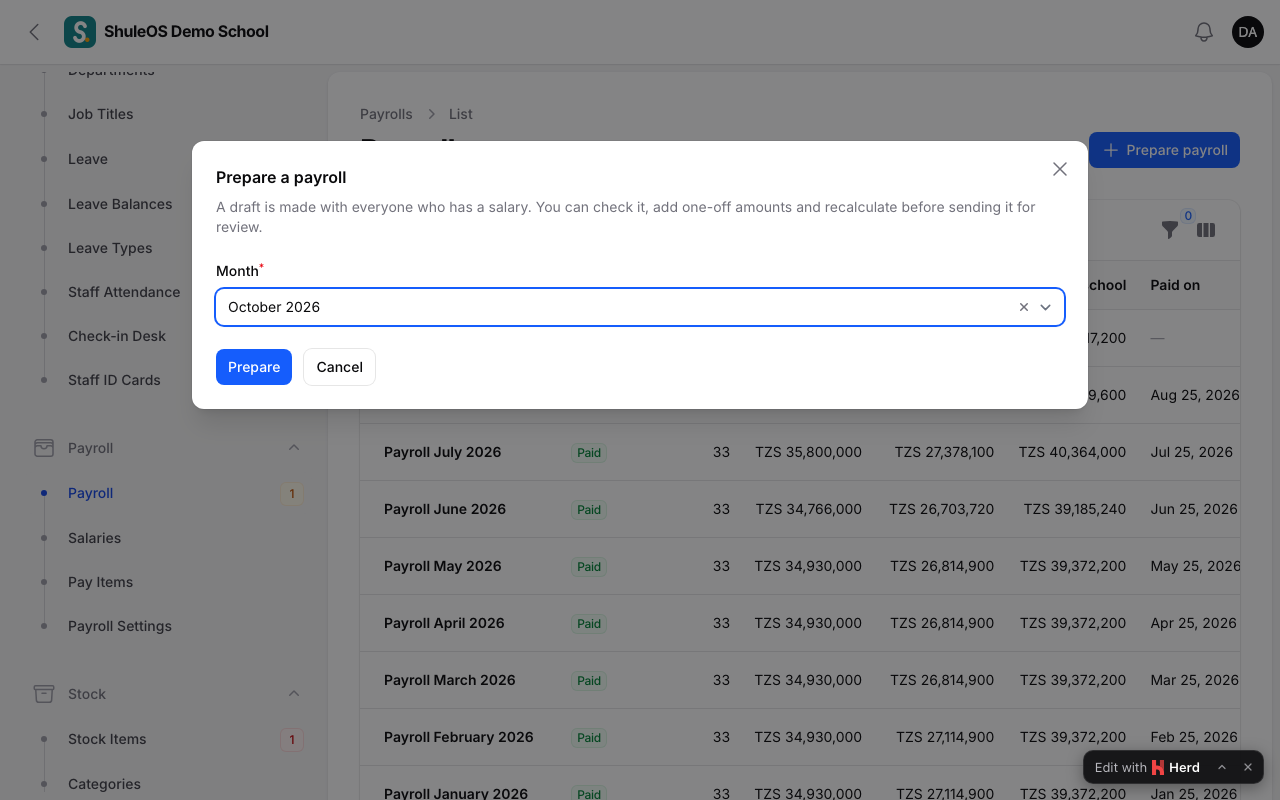
Click Prepare payroll.
-
Choose the Month. Only months from the last twelve that do not yet have a payroll are listed.
-
Click Submit. A draft is made with a line for everyone who has a salary, and it opens.
You cannot prepare a month that has not started ("Payroll cannot be prepared for a month that has not started."), or a month that already has a payroll. If nobody has a salary you see "No employee has a salary for …". Set salaries first (see Set salaries and pay items).
Check the draft

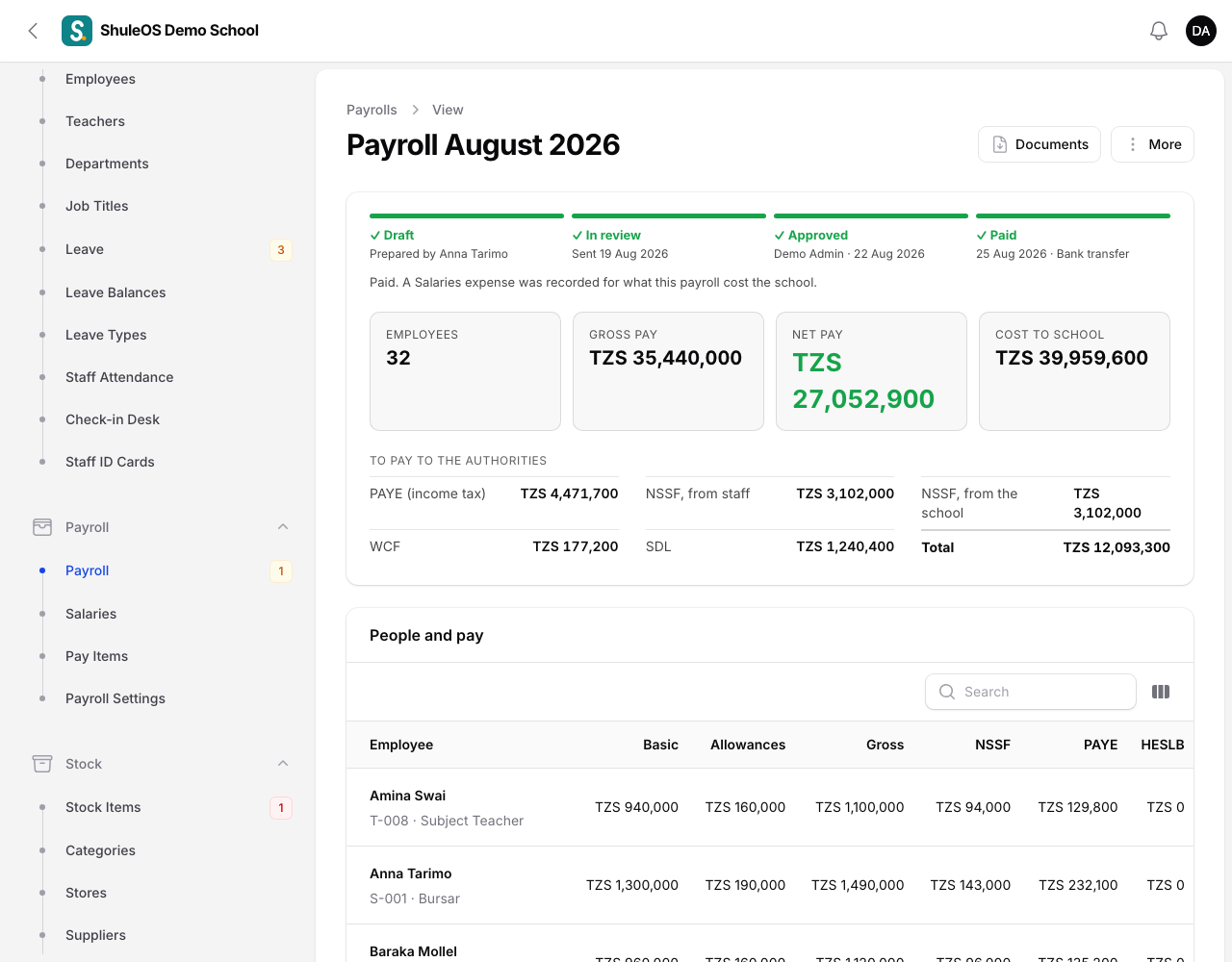
At the top, a progress bar shows the four stages with who moved it on and when (for example "Prepared by Anna Tarimo", "Sent 19 Aug 2026"). Under it are the totals: Employees, Gross pay, Net pay and Cost to school, and a box To pay to the authorities with the PAYE (income tax), the HESLB repayments (when anyone has a loan), the NSSF from staff and from the school, the WCF and the SDL, so the accountant knows how much to send where.
The People and pay table shows, for each person: Basic, Allowances, Gross, NSSF, PAYE, HESLB, Other deductions and Net pay. Small notes under a figure explain it, for example "− 100,000 for 2 days of unpaid leave" under the basic, or which allowances were added.
How a person's pay is worked out:
- The basic salary is reduced for unpaid leave, for days before they joined or after they left, and, if your school switched them on, for absent days and late arrivals (see Staff attendance and the check-in desk). Days on approved paid leave never reduce pay.
- Their earnings (allowances) are added. The result is the gross pay.
- NSSF is taken from the basic and the earnings that count for the pension.
- PAYE is worked out on the basic and taxable earnings, after NSSF.
- HESLB is taken from the basic pay earned, for staff marked as having a loan. It does not change the PAYE.
- Other deductions come off last. The result is the net pay.
The school's own costs (its NSSF share, WCF and SDL) are shown apart. They never reduce anyone's pay, but they are part of the Cost to school.
Change a draft
-
Recalculate works everyone out again from their current salary, pay items and attendance. Use it after you fix a salary. One-off amounts you added are kept, people who now have a salary are added, and people who no longer do are dropped.
-
Add one-off on a line adds an amount for this month only. An addition is taxed like the basic salary. A deduction is taken from net pay.
Clear one-offs removes them again.
-
Take off removes a person from this payroll. Recalculate brings them back if they still have a salary.
Send it for review and approve it
- Click Send for review when the draft is right. Nobody can change the figures until it is returned to a draft.
- A person with the permission to approve payroll opens it and clicks Approve. Approving fixes the figures.
The person who prepared a payroll cannot approve it themselves, as long as someone else at the school is allowed to. You see "Someone else has to approve a payroll you prepared." This is a safety check, so no single person can prepare and approve their own payroll.
To change something after review or approval, use More → Return to draft. It must then be sent for review and approved once more.
Payslips, the register and the bank file
Once a payroll is approved or paid, you can produce:
-
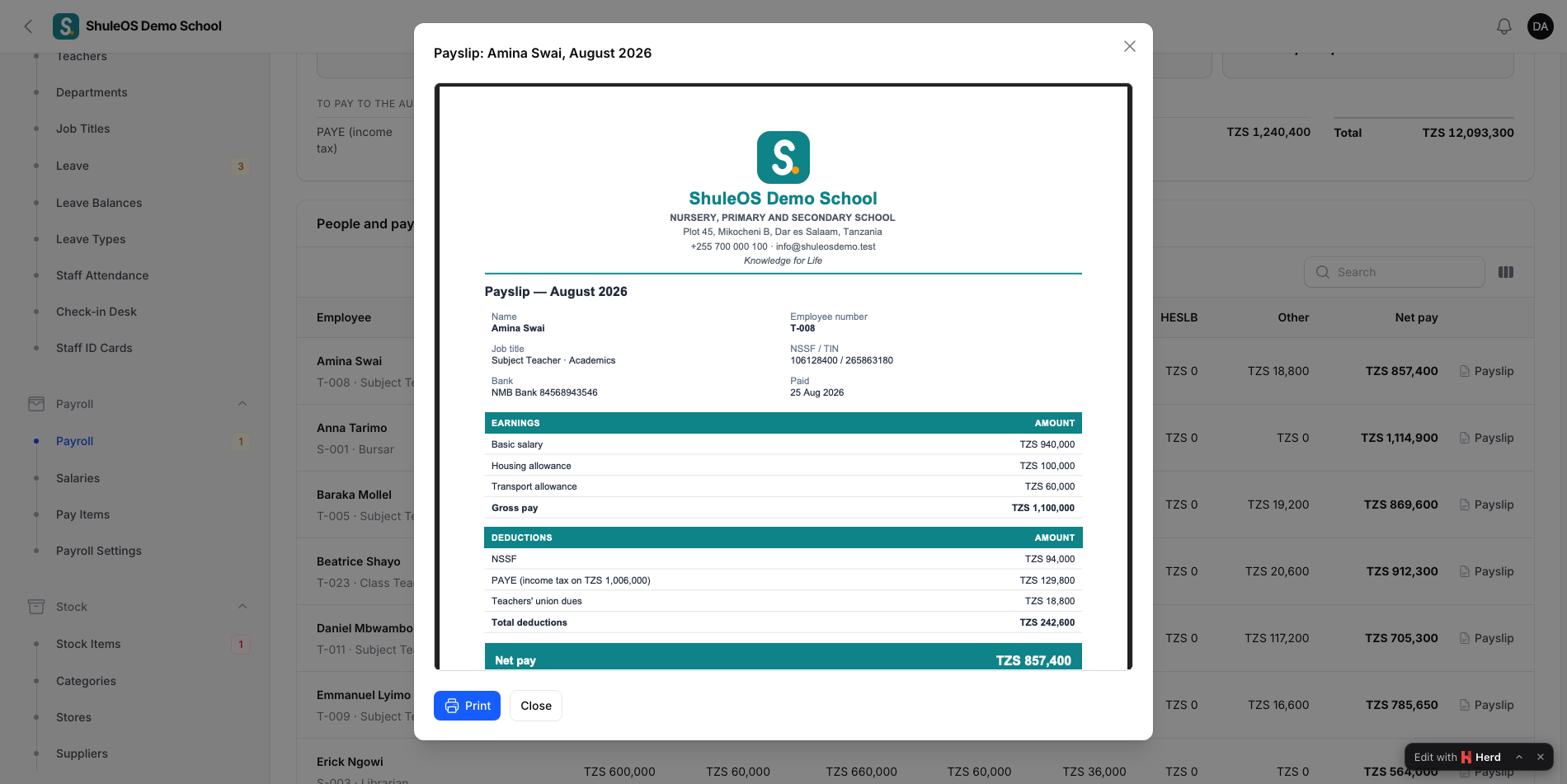
Payslip on a line: opens a person's payslip. Click Print to print it.
-
Documents → All payslips (PDF): every payslip in one file.
-
Documents → Payroll register (PDF) and (Excel): one sheet with everyone's figures, for filing. These are available at any stage.
-
Documents → Bank file (CSV): a file for your bank, built from the account details on each employee's record.
Mark it as paid
When you have paid the staff:
- Click Mark as paid.
- Enter the date Paid on, the payment Method, the account it was Paid from, and a Reference if you have one.
- Confirm. ShuleOS records one Salaries expense for the Cost to school (gross pay plus the school's NSSF, WCF and SDL) and takes it from the account you chose. See Record expenses.
If you marked it paid by mistake, use More → Cancel payment. The expense is cancelled, the money goes back to the account, and the payroll is approved again. A draft that was never paid can be removed with More → Delete.
Your own payslips
Someone who is both an administrator and an employee (for example the accountant or the secretary) sees HR → My Payslips in their menu. It lists their own payslips and their own attendance, so they do not need a separate teacher-portal login. Teachers see the same in their own portal.
If something goes wrong
| What you see | What it means and what to do |
|---|---|
| "There is already a payroll for …" | Each month has one payroll. Open it from the list. |
| "No employee has a salary for …" | Set salaries first. |
| Approve is missing | Your role is not allowed to approve payroll, or the payroll is not in review. |
| "Someone else has to approve a payroll you prepared." | Ask another person who can approve payroll. |
| A payslip or the bank file is missing | They appear only once the payroll is approved. |
| Someone's pay is lower than expected | Read the note under their basic pay on the line: it lists unpaid leave, absence or late reductions. |
| A person is missing from the payroll | They have no salary, or were taken off. Click Recalculate. |
Related guides
- Set salaries and pay itemsGive every employee a basic salary, create the allowances and deductions the school uses, attach them to people, and preview what each person will be paid.
- Payroll settings: NSSF, HESLB, PAYE and the school's other costsSet the pension, student loan, income tax and employer levy rates payroll uses, and the day staff are paid. Do this once before the first payroll.
- HR overview and HR reportsThe HR home page that shows what needs attention today, and nine reports on staff, contracts, documents, birthdays, service, leavers and payroll cost.