
Sign in and find your way around
Sign in to the admin portal, read your dashboard, use the menu and the bell, and change your password.
The admin portal is where the school office runs the school. Teachers and parents have their own portals, so the screens described here are for administrators only.
Sign in
-
Open your school's sign-in page. The address is your school's website address followed by
/admin/login. Your school may also give you a link from its own public page, which has buttons for the Admin, Teacher and Parent portals.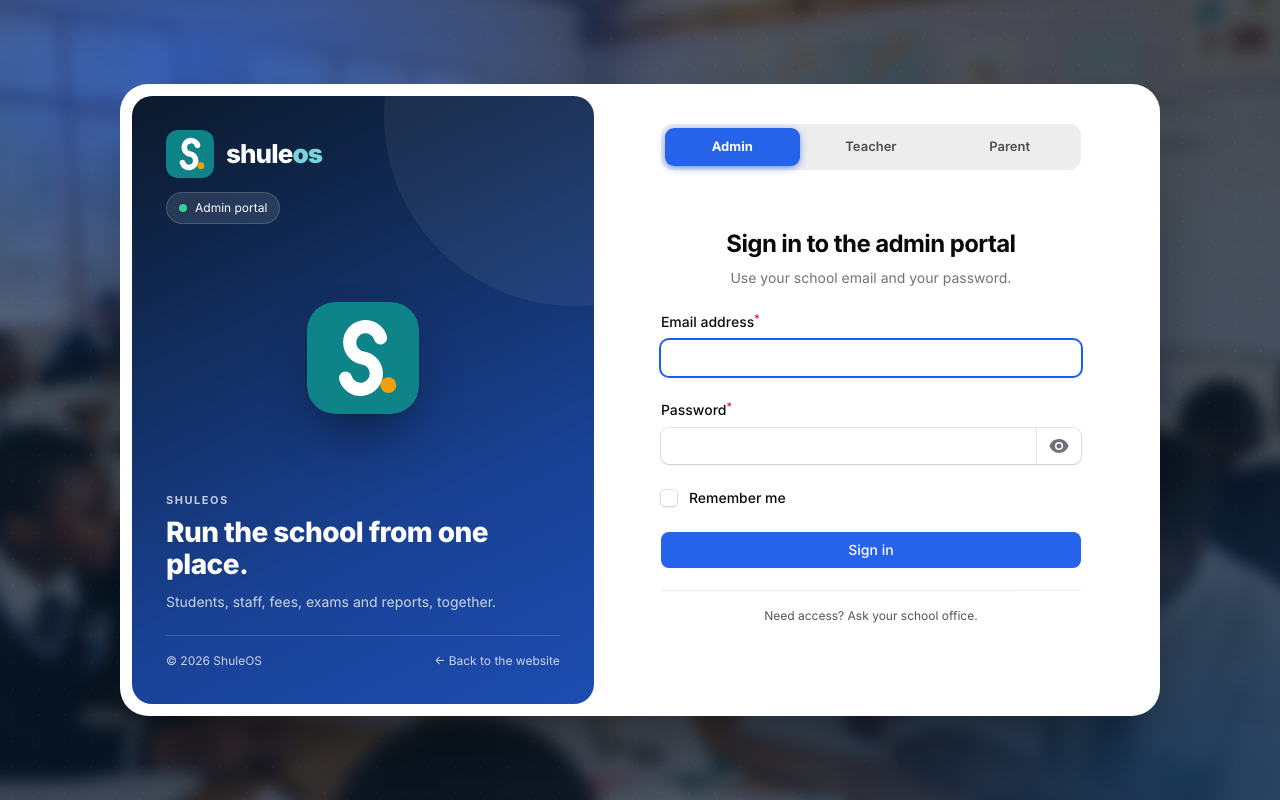
-
Type your school email and your password. Tick Remember me on your own computer if you do not want to sign in every day.
-
Click Sign in.
The first time you sign in, ShuleOS asks you to choose your own password. This is because the office gave you a temporary one. Type a new password twice and click Set New Password.

Changing your password later. Click your initials at the top right and choose Change password. Since this is your own choice and not something ShuleOS is requiring, there is a × to close it without changing anything. If you forgot it, ask a school administrator to reset your password (Account → Users → Reset password), which makes you choose a new one at your next sign-in.
If you cannot sign in
| What you see | What to do |
|---|---|
| The email or password is wrong | Check for a typing mistake and try again. |
| Your school is still waiting for approval | The school has registered but has not yet been approved. You can sign in as soon as it is. |
| This school's portal has been switched off | Contact ShuleOS. |
| You forgot your password | There is no "forgot password" link. Ask a school administrator to open Account → Users, find you, and use Reset password. They give you a new temporary password and you choose your own when you sign in. |
| You signed in but see very few menu items | Your role limits what you can open. Ask a school administrator to change your role. |
Your dashboard
After you sign in you land on the Dashboard. It shows the school today.
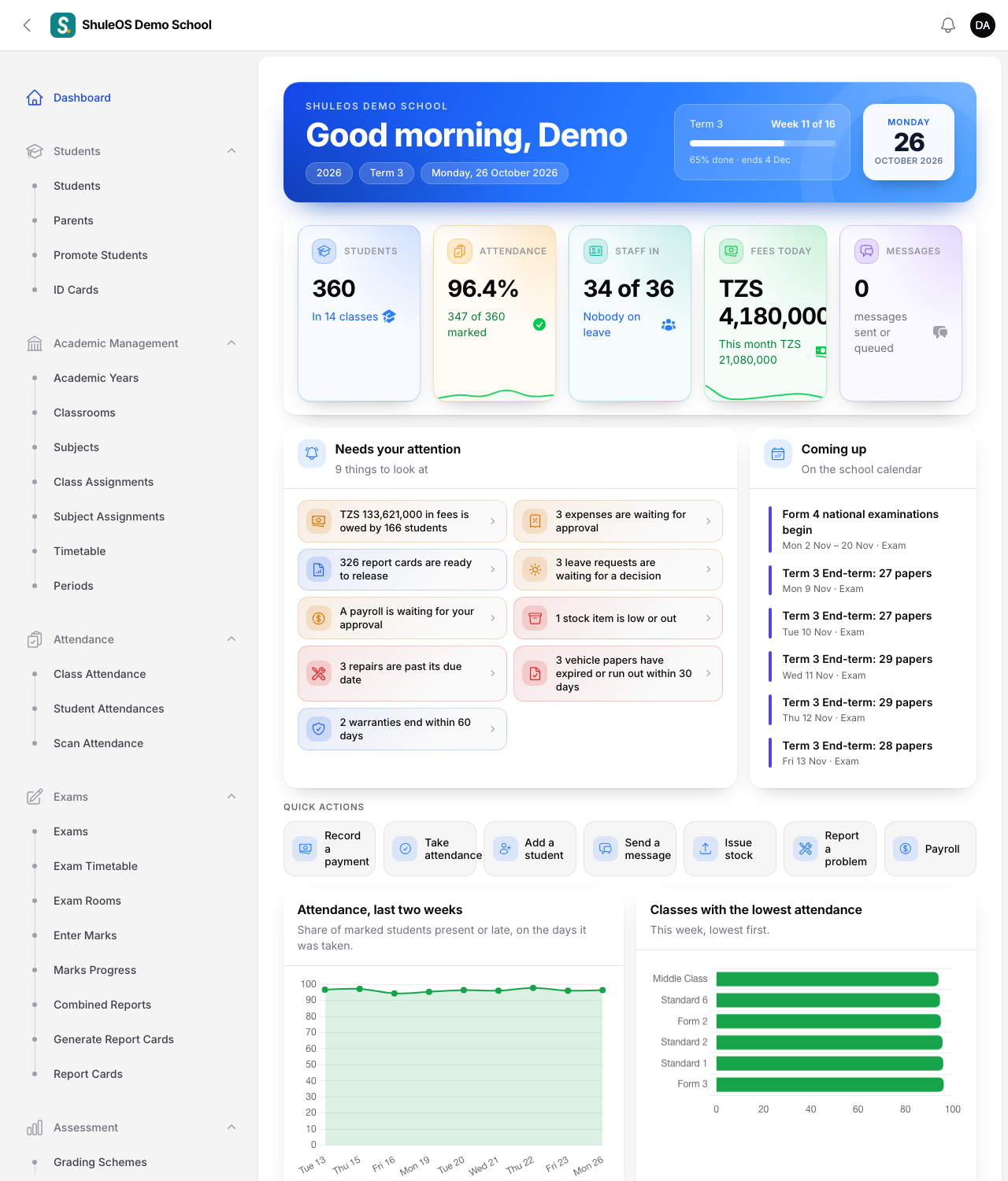
- The banner at the top greets you, shows the academic year, the term and today's date, and how far through the term the school is (for example "Week 6 of 16").
- The number cards show students, today's attendance, staff in, fees collected today and messages sent today. A card only appears if your school has that part of ShuleOS and your role may see it.
- Needs your attention lists what is waiting for a decision or is overdue: fees owed, expenses to approve, report cards ready to release, leave requests, payroll to approve, low stock, repairs, vehicle papers and warranties. Click a line to go straight to that screen.
- Coming up shows the next events on the school calendar.
- Quick actions are shortcuts to the jobs you do most: record a payment, take attendance, add a student, send a message, issue stock, report a problem and payroll. You only see the ones your role allows.
- The charts below show attendance over the last two weeks, the classes with the lowest attendance, students by class, boys and girls, staff by category, fees billed and collected, fees owed by class, the latest exam's averages and pass rate, stock value and repairs.
On a weekend or a holiday the attendance card says "No school today" instead of "Not taken yet".
Different people see different dashboards. A bursar sees money, a records clerk sees students. The school decides which cards each role sees in Account → Settings → Dashboard.
The menu
The menu on the left is grouped by job. Click a heading to open or close it. You only see the groups and screens your role allows, and only the parts of ShuleOS your school's package includes.
| Group | What is in it |
|---|---|
| Students | Students, Parents, Promote Students |
| Academic Management | Academic Years, Classrooms, Subjects, Class Assignments, Subject Assignments, Timetable, Periods |
| Attendance | Class Attendance, Student Attendances |
| Exams and Assessment | Exams, Exam Timetable, Exam Rooms, Enter Marks, Marks Progress, Combined Reports, Generate Report Cards, Report Cards, Grading Schemes, Behavior Criteria, Assess Behavior, Learning Areas, Competency Assessment |
| Lessons | Curriculum, Lesson Plans, Homework |
| Calendar | Calendar, Events and Holidays |
| Fees, Fee Setup, Expenses | Collecting and recording money, fee amounts and types, spending |
| Transport, Uniforms | Routes, vehicles, drivers, and the uniform shop |
| HR and Payroll | Employees, leave, staff attendance, salaries and payroll |
| Stock and Assets and Facilities | Items, purchases, issues, and the school's property and buildings |
| Messaging | Send Message, Message Log, Templates |
| Reports | A report page for each part of the school |
| Account | Settings, Messaging settings, Users, Roles, Plan and Audit Log |
On a phone the menu is behind the three-line button at the top left.
The bell
The bell at the top right shows notices from ShuleOS, for example when something needs your attention. A small number on it means unread notices. Click it to read them.
Signing out
Click your initials at the top right and choose Sign out. Always sign out on a shared computer.