
Academic years and terms
Create the school year and its terms, and keep exactly one year active. Marks, attendance, fees and report cards all work "for a year".
An academic year is the school year, for example 2026. A term is one of its parts, for example Term 1. Almost everything in ShuleOS is done "for a year": which class a student is in, marks, attendance, fee invoices and report cards. So the year and its terms come first.
Before you start
- Decide the year's name, and the start and end dates.
- Have the dates of each term ready (most schools have three).
Create the academic year
-
Open Academic Management → Academic Years. The list shows each year with its start date, end date and status.
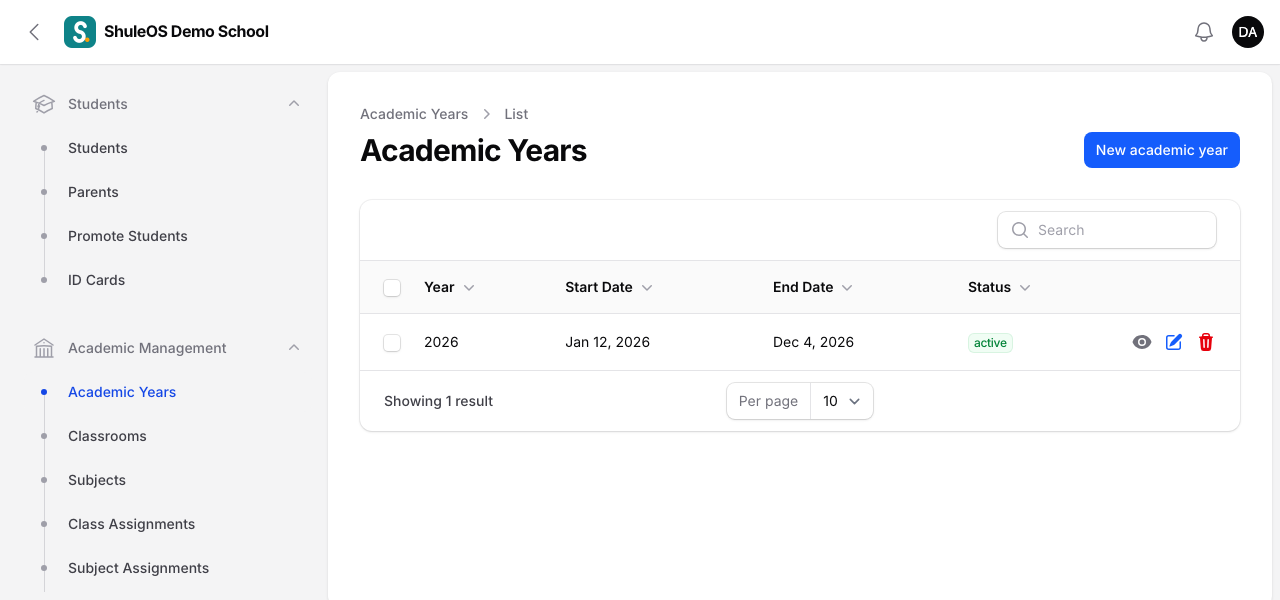
-
Click New academic year.

-
Fill in the form. All four fields are required.
| Field | What to enter |
|---|---|
| Academic Year Name | For example 2026. It must be different from every other year in your school. |
| Start Date and End Date | The first and last day of the school year. The end must be after the start, and the dates must not overlap another academic year. |
| Status | Active (the year the school is working in now), Inactive (not started yet), or Completed (finished). New years start as Inactive. |
- Click Create.
Only one year can be active
Your school can have only one Active year at a time. If you try to make a second one active you will see "The academic year 2025 is already active. Mark it completed first, or use the year-end promotion, which does it for you." The year-end promotion (see Promote students) marks the old year Completed and the new one Active in one step, so most schools never change the status by hand.
The active year is the one the school works in: Enter Marks, class attendance, report cards and new fee invoices all use it.
Create the terms
-
Open Academic Management → Academic Years, click the year, then Edit.
-
Under the form open the Terms tab and click New term.


(There is also a full list of every year's terms at
/admin/terms. It is not in the menu.) -
Fill in the form. All five fields are required (the year is filled in for you when you add a term from the year's page).

| Field | What to enter |
|---|---|
| Academic Year | The year this term belongs to. |
| Term Name | For example Term 1. |
| Term Number | 1, 2, 3 … Each number can be used once per year. |
| Start Date and End Date | The term's first and last day. It must fall inside its academic year, and must not overlap another term. |
- Click Create, or Create & create another to enter the next term straight away.
Why terms matter. The dashboard's "Week 6 of 16" banner, term-based attendance and the fee installments by term all read these dates. Report cards use the term's end date as the closing date unless you set one in Settings.
Change or remove a year or term
- Click a row in the list, then Edit, to change names, dates or status. Click Save changes.
- A year that has been used cannot be deleted. Deleting an academic year would remove everything that belongs to it, so ShuleOS refuses once the year has enrolments, exams, invoices, payments or report cards. To finish a year, set its status to Completed instead, or use the year-end promotion.
- A term can be deleted if you created it by mistake.
If something goes wrong
| What you see | What it means |
|---|---|
| These dates overlap the academic year 2025 (12 Jan 2025 to 5 Dec 2025) | Two years cannot share days. Change the dates. |
| The end date must be after the start date | Swap or correct the dates. |
| A term must fall inside its academic year | The term's dates are outside the year's dates. Fix the term or the year. |
| This academic year already has a term with this number | Use a different term number. |
| The academic year 2025 is already active | Mark that year Completed first, or use the year-end promotion. |
Related guides
- Your first week: setting up the school in the right orderThe order to set up a new school in ShuleOS, so each step has what it needs from the one before.
- Classes and streamsCreate the school's classes, choose how each is assessed, add streams (sections), and choose the subjects each class takes.
- Promote students at the end of the yearMove every class up to the next class for the new academic year, keep back the students who repeat, and mark those who leave. The old year stays as history.