
Promote students at the end of the year
Move every class up to the next class for the new academic year, keep back the students who repeat, and mark those who leave. The old year stays as history.
At the end of the school year, students move up. Students → Promote Students does this for the whole school in one go: each class moves up to the next class, some students can repeat, and some can leave the school. Their old enrolments, marks and report cards stay as history.
Before you start
- Finish the year's work first: marks entered, report cards released, fees closed for the year.
- Check the display order of your classes (Academic Management → Classrooms). The suggestion is that each class moves up to the class with the next display order.
- Decide whether you will create the new academic year here, or if it already exists.
- Take an export of your students (Students → Students → Export), as a copy from before the change.
Step 1: Open Promote Students
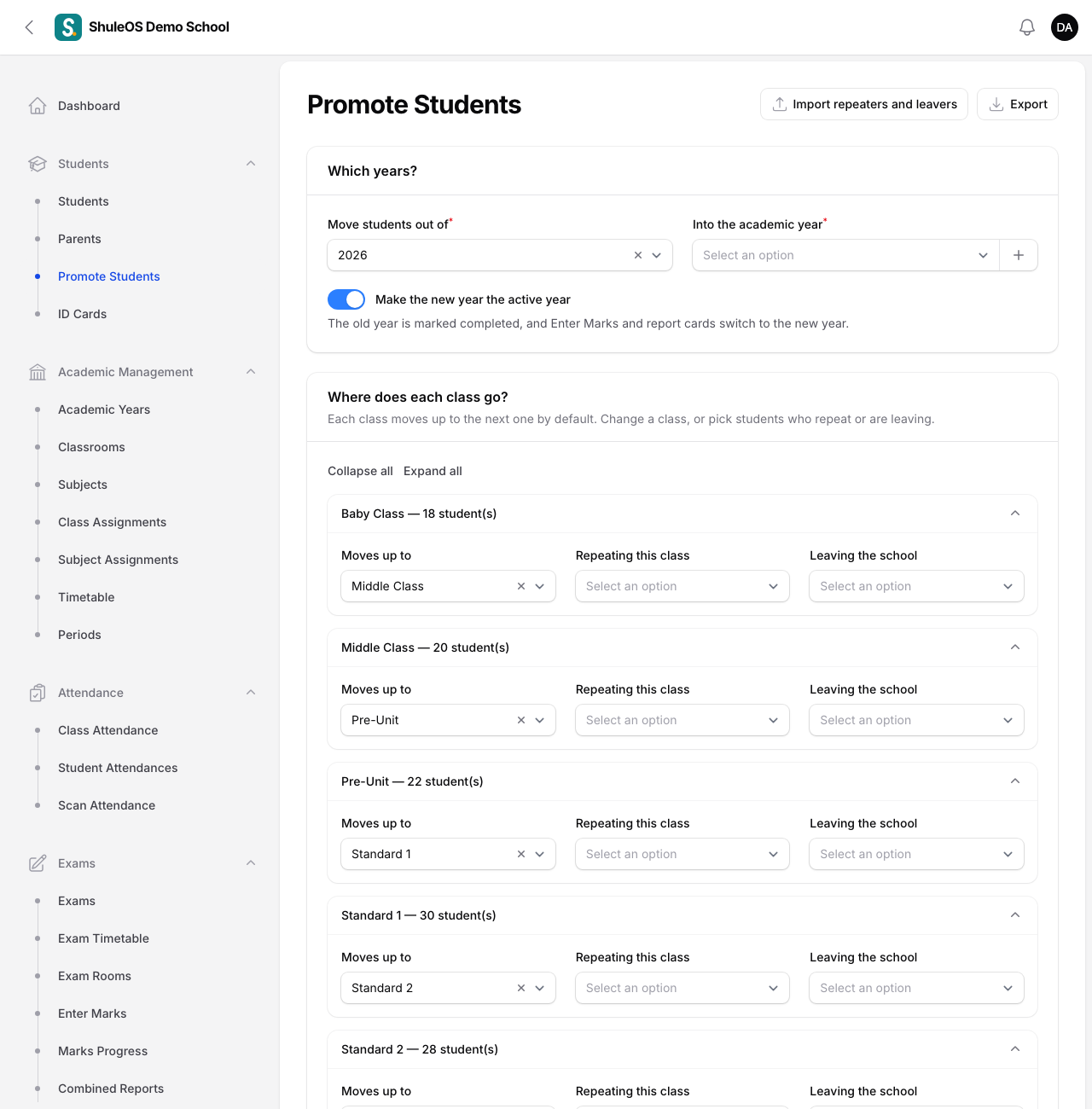
The page has two parts: Which years? and Where does each class go?
Step 2: Choose the years
| Field | What to choose |
|---|---|
| Move students out of | The year that is ending (for example 2026). The classes below show how many students each has in that year. |
| Into the academic year | The new year (for example 2027). If it does not exist yet, create it right here: enter the Year name, and its Starts and Ends dates. |
| Make the new year the active year | On by default. The old year is marked Completed, and Enter Marks and report cards switch to the new year. |
You must choose two different years, or you see "Choose two different academic years".
Step 3: Check where each class goes
Every class is listed with its number of students, for example Standard 1 — 30 student(s). Open a class to see:
- Moves up to: the class these students go to. It is filled in with the class that has the next display order. Change it if your school does things differently.
- Repeating this class: pick the students who repeat. They stay in this class for the new year.
- Leaving the school: pick the students who are leaving, for example the top class, or students who are transferring.
The last class has no class to move up to, so its students are treated as leaving. Use Collapse all and Expand all to fold the class list.
Fill in repeaters and leavers from a file
If many students repeat or leave, use Import repeaters and leavers: download the template, list the students, upload it and check the preview. It updates the plan above ("3 repeating, 5 leaving, 24 moving up"). You can also Export the plan as a spreadsheet.
Step 4: Promote
- Read the plan once more.
- Click Promote students. A window says: Students are moved as shown above. The old year's enrollments, marks and report cards stay as history.
- Confirm.
You see Students promoted, for example "280 moved up, 12 repeating, 25 left the school.". If some students are already enrolled in the new year they are counted as "already enrolled" and left alone.
What promotion does
- Moves each student into the next class for the new year, with a new enrolment. Their old class enrolments are marked Completed.
- Students who leave get the status Graduated. They are no longer counted, marked or billed.
- Repeaters get a new enrolment in the same class.
- If you chose to, the new year becomes the active year, and the old year becomes Completed.
- The action is recorded in the Audit Log.
After promotion
- Add the new year's terms (see Academic years and terms).
- Check the class lists (Academic Management → Classrooms → the class → Enrolled Students, with the year set to the new year).
- Set up new fees for the new year.
- Add the new students who join, and place them in the classes (see Add a student).
If something goes wrong
| What you see | What it means |
|---|---|
| Choose two different academic years | You picked the same year twice. |
| A class shows no students | It has no active enrolments in the year you are moving out of. |
| A student is in the wrong class afterwards | Open the new class (Edit → Enrolled Students) and edit their enrolment, or move them from that class's list. |
| You promoted by mistake | There is no one-click undo. Correct individual students from the class pages, and ask for help before doing anything bulk. |
Related guides
- Academic years and termsCreate the school year and its terms, and keep exactly one year active. Marks, attendance, fees and report cards all work "for a year".
- Classes and streamsCreate the school's classes, choose how each is assessed, add streams (sections), and choose the subjects each class takes.