
Parent logins and contact lists
Give parents their portal logins, reset a forgotten password, import parents from a file, and print a contact list.
Parents use the parent portal to follow their children. Each parent needs a login. You create logins from Students → Parents, for one parent or for many at once.
Before you start
- Parents need a phone number or an email. Parents sign in with their phone number (or email). A parent with neither cannot be given a login and is skipped.
- Check the portal is open. In Account → Settings → Parent Portal, Parents can sign in must be switched on. See School settings.
- Your school's package must include the parent portal.
See who has a login
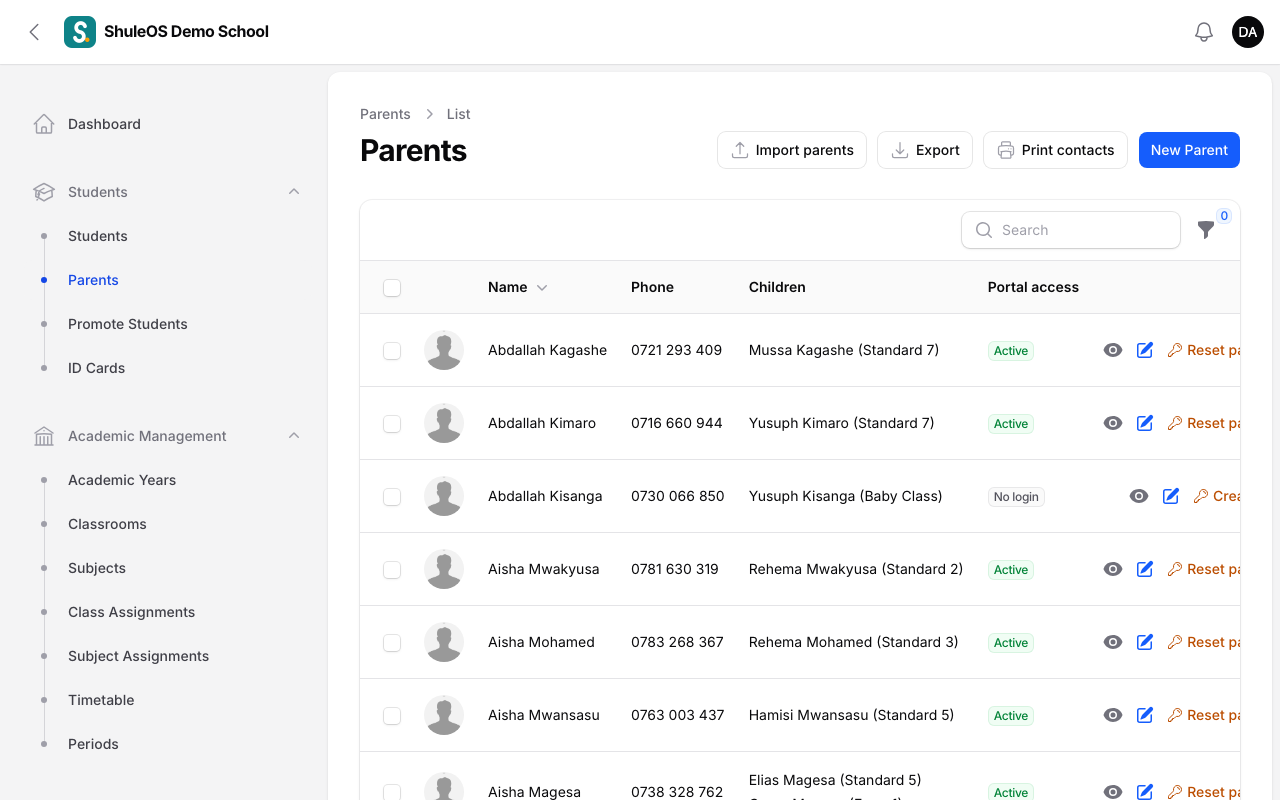
Open Students → Parents. The Portal access column shows one of:
| Badge | Meaning |
|---|---|
| No login | The parent has no login yet. |
| Active | The parent has a login and can sign in. |
| Blocked (inactive) | The parent has a login but cannot sign in right now. |
Use the Portal access filter (funnel icon) to show only parents with No login yet or who Have a login.
Create logins for many parents at once
- Filter the list to No login yet (optional but sensible).
- Tick the parents (the box at the top selects the whole page; Select all picks every matching parent).
- Open Bulk actions and choose Create parent logins.
- Choose how to make the temporary passwords:
- A different password for each parent (recommended): each parent gets their own short password such as
kmr4-x7pq. - The same password for everyone: type one password (at least 8 characters). Anyone who knows it could sign in as any parent who has not yet changed it, so use this only for a first-day event.
- A different password for each parent (recommended): each parent gets their own short password such as
- Click Submit.
You see "30 parent login(s) created", and how many were skipped for having no phone or email. A file called parent-logins.csv downloads at once. It lists each parent, what they type to sign in, and their temporary password.
Keep or hand out that file straight away. Passwords are stored in a form that cannot be read back, so this download is your only chance to see them. If you lose it, reset each password (below).
Each parent chooses their own password the first time they sign in. If your school has switched on the "parent login details" notice in Messaging settings, ShuleOS also sends each parent their details by SMS or email.
Create or reset one parent's login
On a parent's row click the key icon:
- Create login appears when the parent has no login.
- Reset password appears when they already have one, for example when they forgot it.
Confirm, and you see Temporary password for (name) with the login and password. It stays on screen until you close it, and it is shown only once. Tell the parent, and they choose a new password when they sign in.
How parents sign in
Give parents your school's parent sign-in address, which is your school's website address followed by /parent, or the Parent button on your school's public page. They type their phone number (or email) and the temporary password. Any usual way of writing the phone number works (0712 345 678, +255712345678).
See the portal as a parent
Click the eye icon (View as this parent) on a parent's row to see the parent portal as they see it, for example when a parent says their child's results are missing. It is view only, with an orange bar and a Stop viewing link, and every use is recorded in the audit log. Only the school administrator can do this.
Import parents from a file
Use this to add parents who are not linked to a student yet, or to update their details.
-
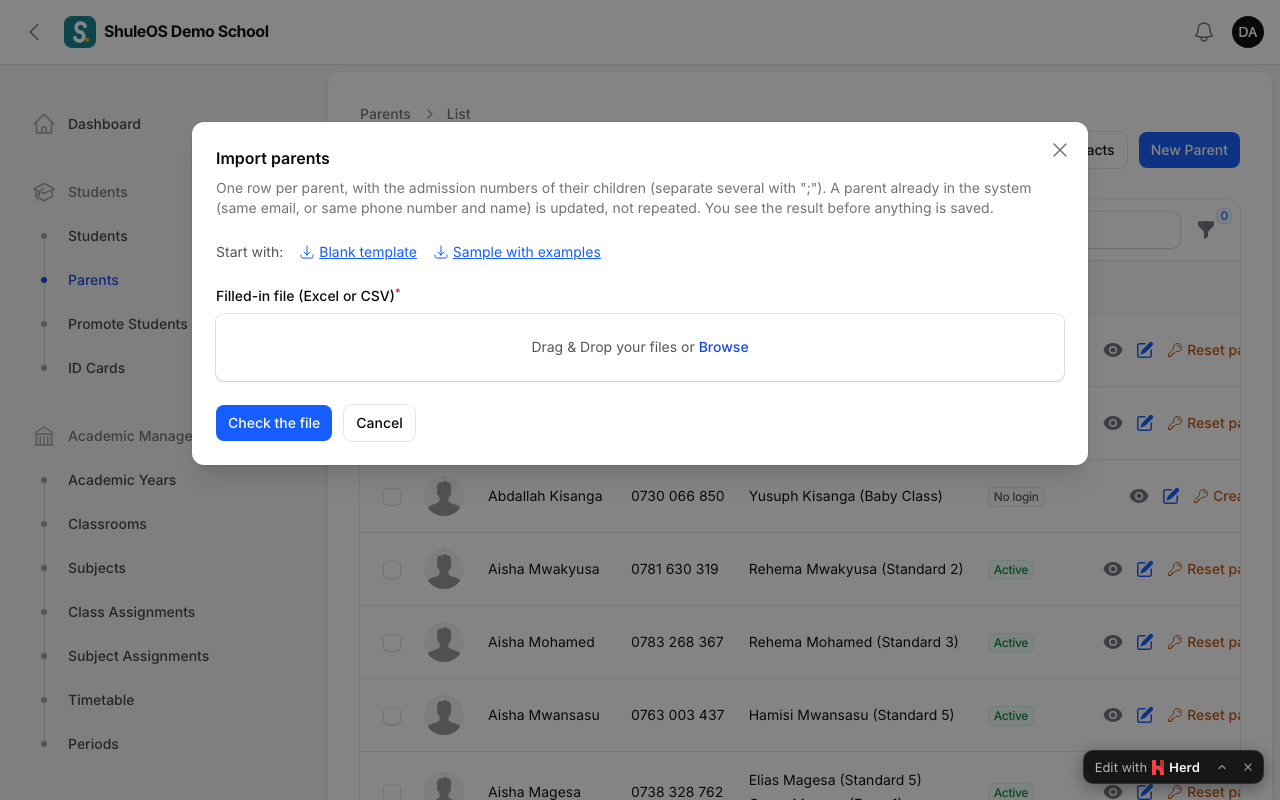
On the Parents list click Import parents.
-
Download the Blank template or Sample with examples. The columns are First name, Last name, Phone, Email, Relationship, Address, Occupation and Children (admission numbers). Separate several children with a semicolon (
;). -
Upload the file and click Check the file, read the preview, then save.
A parent already in the system (same email, or same phone number and name) is updated, not repeated. You see the result before anything is saved. To add students and their parents together, see Import students.
Print a contact list
Click Print contacts to open a printable list of parents with their phone numbers and children. You can also print a Parent contact list for one class from Students → Students → Print.
Export the list
Click Export, then Excel-friendly CSV or Excel (.xlsx).
If something goes wrong
| What you see | What it means |
|---|---|
| skipped (no phone or email) | Add a phone number or email to that parent, then create their login again. |
| A parent says "wrong password" | Reset their password from the parent's row and give them the new one. |
| A parent is turned away with a message that the portal is closed | Parents can sign in is off in Settings → Parent Portal. |
| A parent sees no children | They are not linked to a student. See Add and link parents. |
| Two schools' parents share a phone number | Parents with the same phone number in different schools should sign in with their email address instead. |
Related guides
- Add and link parentsRegister a parent or guardian, link them to their children, and change or remove the link.
- Import students and parents from a fileAdd or update many students, with their classes and parents, from one Excel or CSV file. You see a preview before anything is saved.
- School settingsYour school's name, logo, colours, report card layout, and what parents, teachers and visitors can see. Seven tabs on one page.