
Student ID cards
Choose a card design in Settings, preview and print cards, add photos in bulk, and print for the whole school, a class, or chosen students.
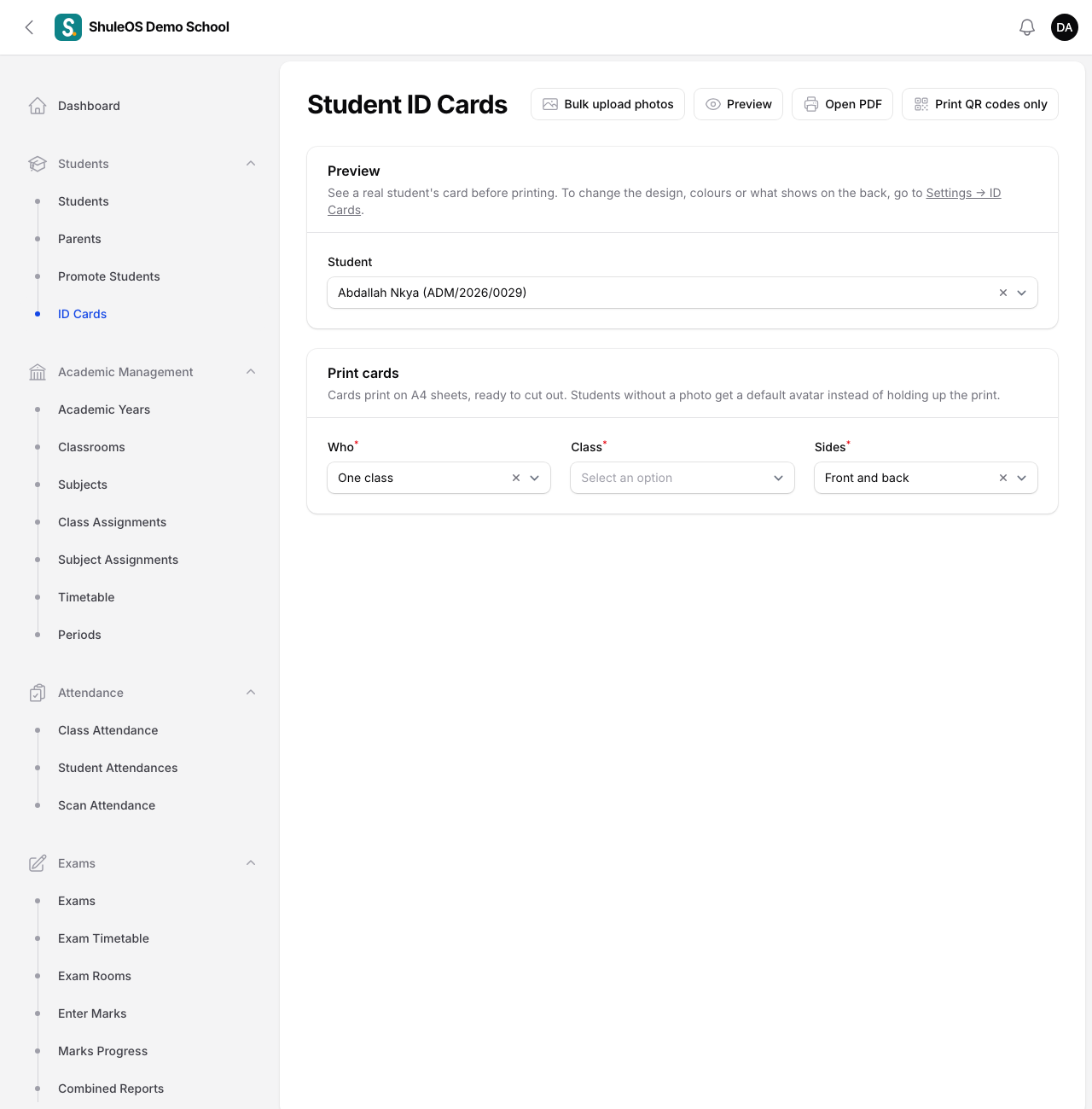
Students → ID Cards is only shown if your package includes the Student ID Cards module. It lets you preview a card, print it for one student, a class, or the whole school, and add photos in bulk. The design itself — which template, colours, QR code and what shows on the back — is set in Settings → ID Cards.
Choose a design
- Open Settings, then the ID Cards tab (or click the "Settings → ID Cards" link on the Students → ID Cards page).
- Under Student cards, click a design to select it. Your package decides how many designs you can choose from; if it allows only one or two, the rest are not offered.
- Turn QR code on the card on or off. If your package does not include QR codes, this is switched off and cannot be changed.
- Set the Valid until year, and choose what appears on the back and front: parent contact, head teacher signature, the valid-until date, blood group and house.
- Click Save.
A different design for one class
Under A different design for a class, click Add a class, pick the class and a design. That class's cards use that design instead of the school default; every other class keeps using the design above. This is useful for giving, say, the nursery a more colourful card. A different design for a class type does the same for every class of a type (e.g. all Nursery classes) — a class listed individually takes priority over its class type.
Preview and print cards
Use the Print cards section at the top of the page, or the Print ID cards bulk action on the Students list.
- From the ID Cards page: choose Every active student or One class, choose Front and back or Front only, and click Open PDF.
- From the Students list: tick the students you want, then choose Print ID cards from the bulk actions above the list. This prints only the students you ticked, whatever design each of their classes uses.
The PDF is laid out on A4 sheets ready to cut out. A student with no photo on their record gets the default avatar instead of holding up the print.
Add photos in bulk
If many students have no photo yet, click Bulk upload photos. Name each picture file with that student's admission number and nothing else, for example ADM-2026-0001.jpg, then upload up to 150 at once. Each file replaces that student's existing photo. You are told how many photos were matched, and the names of any files that did not match a student — check those file names and try again.
Reissue a lost card
If QR codes are on and a card is lost, open the student's page (Students, then the student, then Edit) and click Reissue ID card. The old card's QR code stops working straight away, so it can no longer be used to prove who someone is, even if it is found later. Print a fresh card for the student afterwards.
Checking a card is real
Every QR code opens a page showing only the school's name, the student's name, photo and whether the card is currently valid — nothing else, so scanning a card never shows fees, results or contact details. A reissued or cancelled card shows Not valid.
If something goes wrong
| What you see | What it means |
|---|---|
| The ID Cards page is missing from the menu | Your package does not include the Student ID Cards module. Ask about upgrading your package. |
| QR code on the card cannot be turned on | Your package includes ID cards but not QR codes. |
| A design is missing from the list | Your package limits how many designs you can use. |
| A photo did not match anyone | The file name must be exactly the student's admission number, with nothing added before or after it. |
| A student's card shows the default avatar | That student has no photo yet. Add one from their page, or with Bulk upload photos. |
| A QR code says Not valid | The card was reissued, the student is no longer active, or the code does not belong to this school. |
Related guides
- Add a studentRegister a new student, place them in a class, and link their parents, so they show up in attendance, exams, fees and the parent portal.
- Find, change and print studentsSearch and filter the student list, open a student's page, change their details, export the list, and print class lists.
- Your plan and the audit logSee what your package includes and how much of it you have used, ask for an upgrade, and look back at who did what and when.