
Collect fees, record payments and print receipts
Find a student, take a payment, see how it is shared across their invoices, print the receipt, and void a payment made by mistake.
The office records payments in ShuleOS: cash, bank transfers, mobile money and cheques. (ShuleOS does not take online payments; parents pay the school or the bank, and the office records it.) Every payment gets a receipt number and changes the student's balance at once.
Before you start
- The student has invoices for the year (see Generate invoices).
- In Fee settings you have chosen how a payment is shared: oldest debt first, or the cashier chooses.
Collect Fees: work from the student
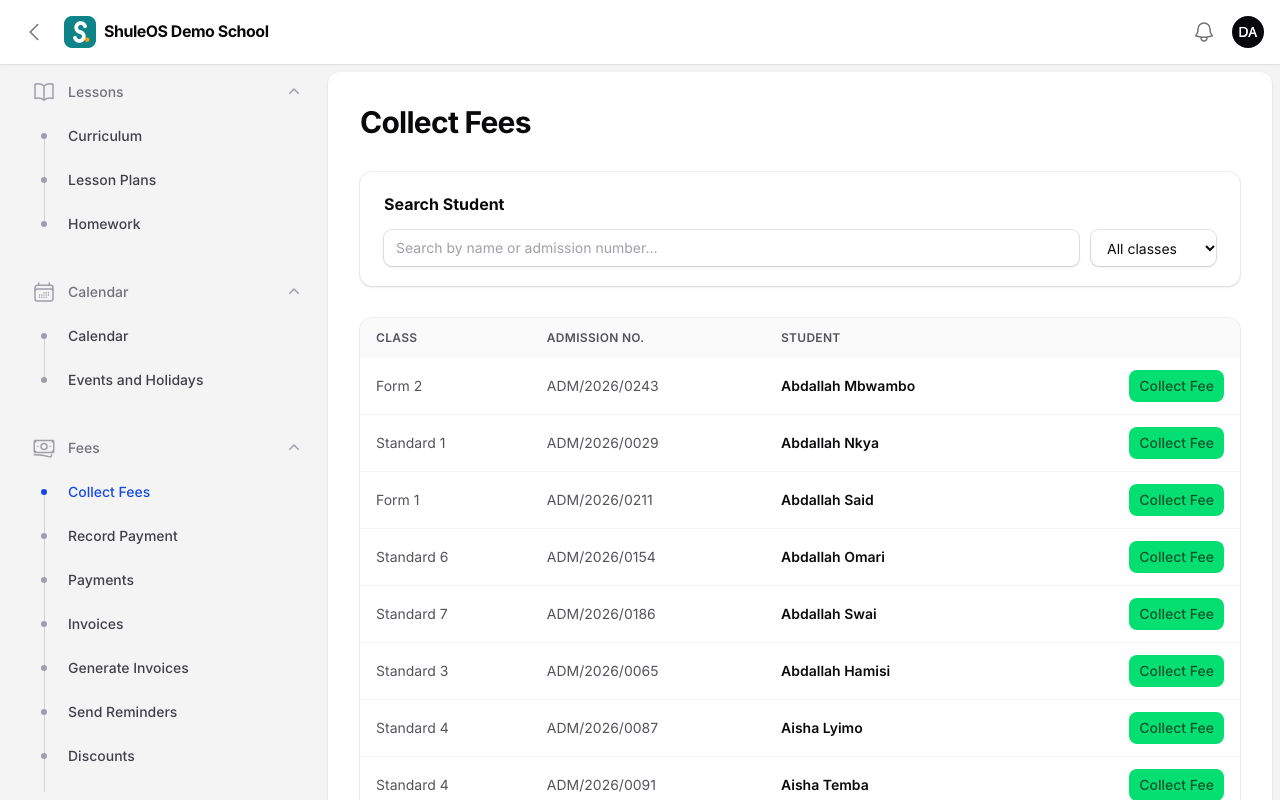
Fees → Collect Fees is the cashier's main screen.
-
Type the student's name or admission number in Search Student and click the student.
-
The student's fee page opens.
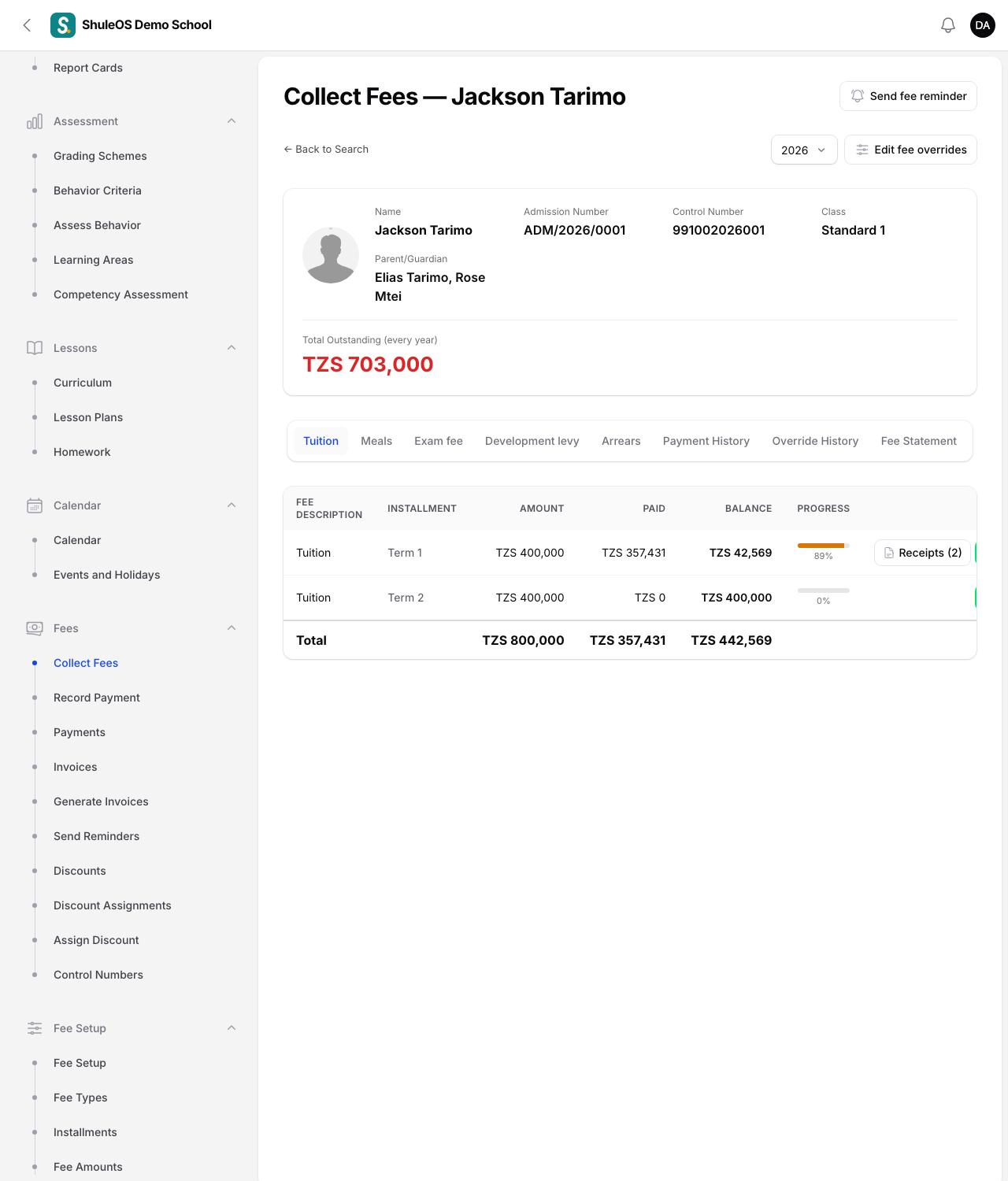
- The top shows their name, admission number, control number (if used), class, parent and Total Outstanding (every year).
- Choose the year at the top right. Edit fee overrides opens that student's overrides. Send fee reminder reminds their parents of the balance.
- Tabs list each fee type (Tuition, Meals…), then Arrears, Payment History, Override History and Fee Statement. Each row shows the fee, installment, Amount, Paid, Balance, and a progress bar, with an Invoice button (opens the invoice as a PDF) and Receipts (n), which lists the receipts already issued, each with a View button that opens it as a PDF.
-
Click Collect beside the invoice being paid. A window opens:
| Field | What to enter |
|---|---|
| Amount | Filled in with the balance. Change it for a part payment. |
| Method | Cash, Bank transfer, Mobile money, Cheque or Other. |
| Reference No. (optional) | The cheque number, bank slip or mobile money transaction id. |
| Date | Defaults to today. |
| Attach receipt (optional) | A photo or PDF of the bank slip (up to 5 MB). |
| Notes (optional) | Anything worth remembering. |
- Confirm. You see "Payment recorded: RCT-2026-000123" and can print the receipt.
Collect pays exactly that one invoice. Anything paid beyond its balance is kept as credit on the student's account.
Record Payment: one lump sum
Use Fees → Record Payment when a parent pays one amount for several things.
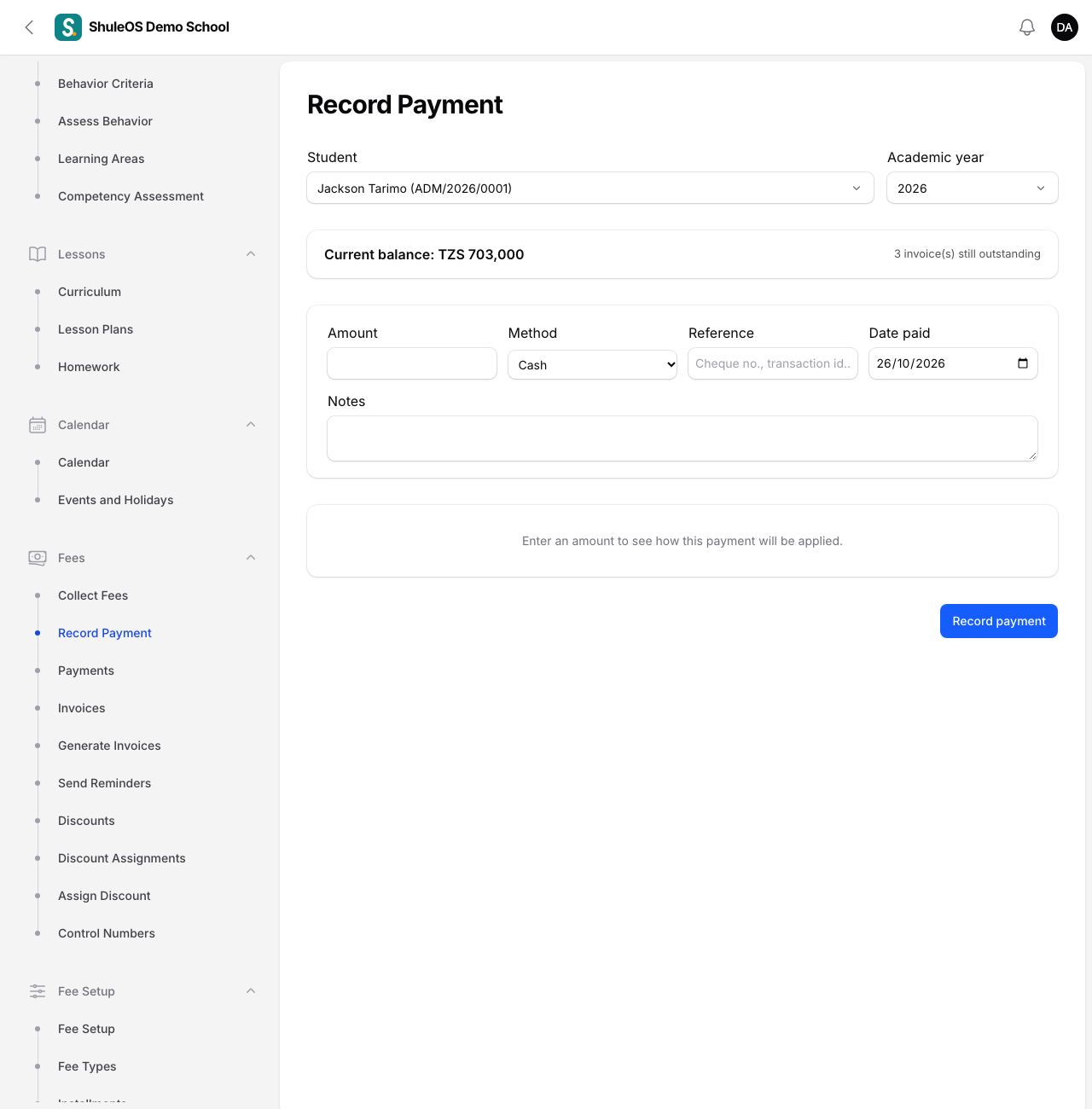
- Choose the Student and the Academic year. The Current balance and how many invoices are outstanding are shown.
- Enter the Amount, Method, Reference and Date paid, and any Notes.
- Below, ShuleOS shows how the payment will be applied, invoice by invoice. If your rule is "the cashier chooses", you type how much goes to each invoice. If there is nothing outstanding you see "No outstanding invoices for this year: the whole payment will be kept as credit", and anything left over is shown as "Left as credit (not yet applied to an invoice)".
- Click Record payment. You see "Payment recorded: RCT-…".
Nothing is recorded if you have not chosen a student, a year and an amount ("Choose a student, year and amount first").
The payments list
Fees → Payments lists every payment: Receipt number, Student, Year, method, amount and Date paid. Filter by year, or status (Completed or Voided). Click a payment to open it.
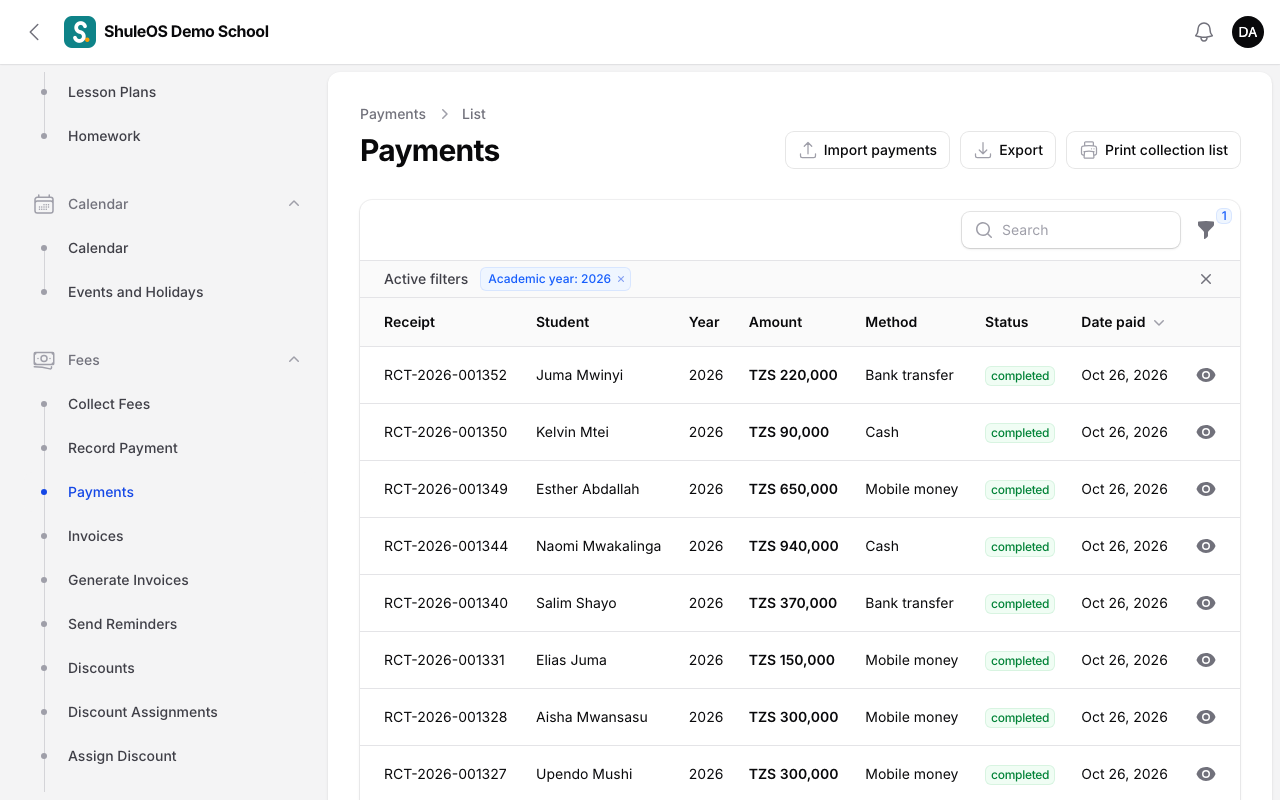
Buttons on the list:
- Print collection list: choose From, To and a Method for a printable list of what was collected, for banking or the day's report.
- Export: the payments as Excel-friendly CSV or Excel (.xlsx).
- Import payments: load payments from a file (for example a bank statement). You see a preview, and "Payments recorded: 40 recorded, 2 skipped as already recorded".
Print a receipt
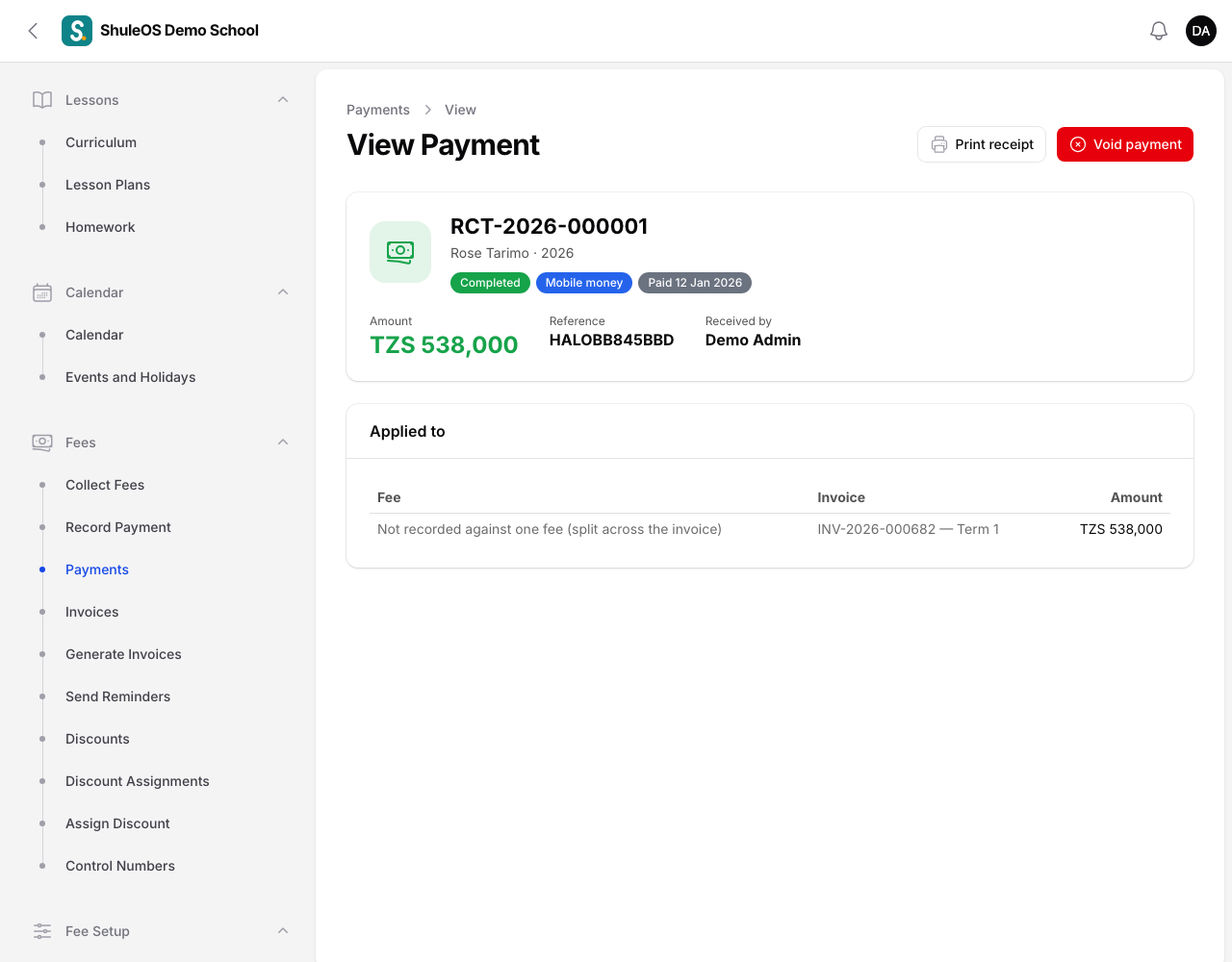
Open a payment and click Print receipt. A receipt opens in a new tab with the school's letterhead, the receipt number, the student, the amount and how it was applied, ready to print. Parents can also open receipts in the parent portal, if the school allows it (Settings → Parent Portal).
Void a payment made by mistake
- Open the payment and click Void payment.
- Give a Reason and confirm. ShuleOS posts a reversing charge. The payment stays on record, marked Voided, and is never deleted. You see "Payment voided".
- The student's balance goes back up. Record the correct payment.
If something goes wrong
| What you see | What it means |
|---|---|
| Could not record the payment | Read the reason under the message, then correct the amount or allocation. |
| The balance is not what the parent expects | Open the student's Fee Statement and Payment History tabs to see every charge and payment. |
| A receipt shows the wrong amount | Void the payment and record it again. |
| A student is not found | Search by admission number, or check the student is Active. |
Related guides
- Generate invoices, and correct themBill a whole school or chosen classes for an installment or the year's one-off fees, look at invoices, void a wrong one, post adjustments and opening balances.
- Fee settingsChoose the currency, how receipt numbers look, how parents are told to pay, whether your bank gives control numbers, and how payments and late joiners are handled.
- Control numbersKeep the payment number each student's bank gives them, import it from a file, and see who is missing one.