
Teachers and their portal login
Add a teacher with their teaching details, give them a login for the teacher portal, reset their password, and see who can sign in.
A teacher is an employee with a teaching profile. The HR → Teachers page is a shortcut for adding and managing them. It lists only teachers, with what matters for teaching: whether they are a class teacher and whether they can sign in to the teacher portal.
The Teachers list
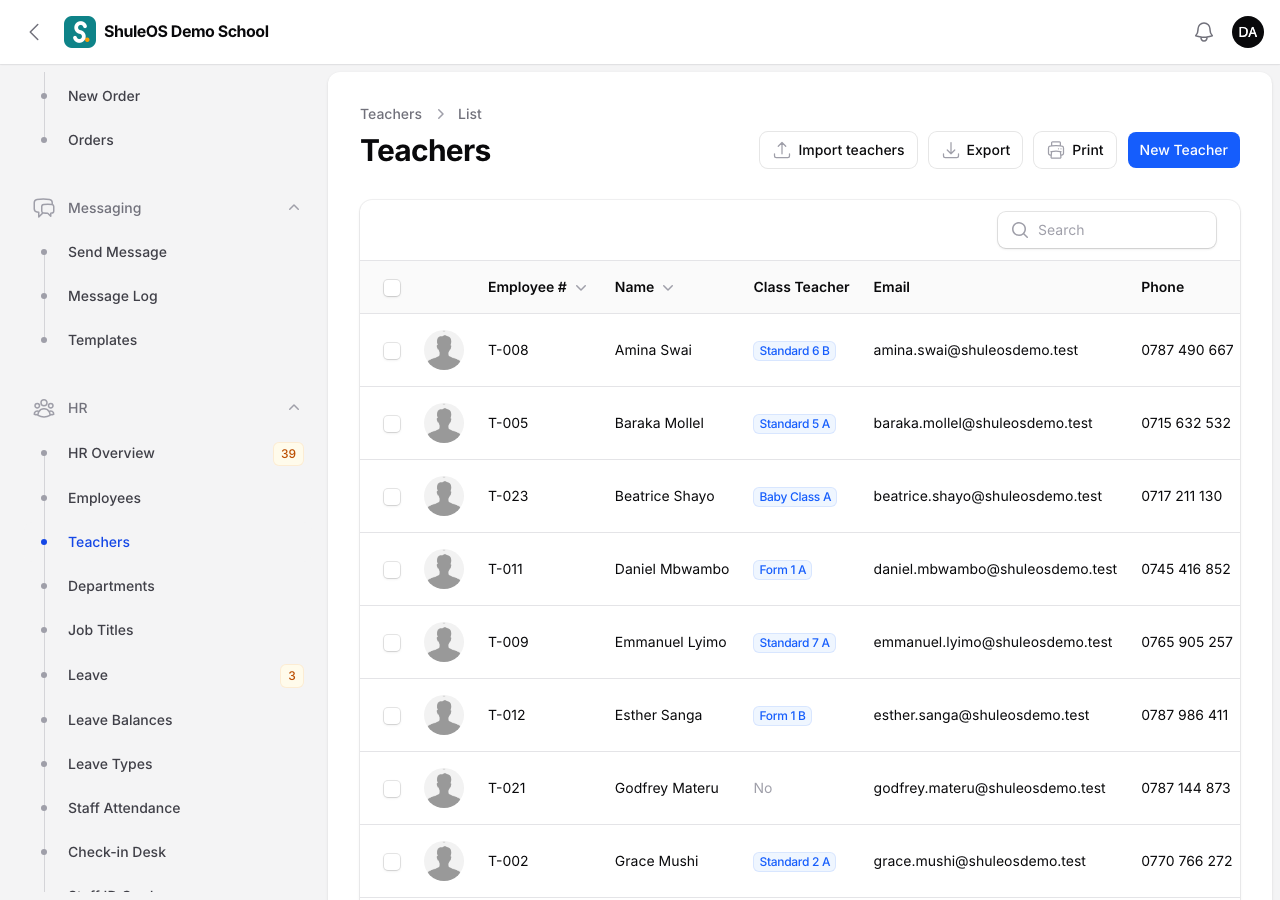
Each row shows the Employee #, Name, Class Teacher (whether they have a class), Email, Phone, Status and Portal access:
| Portal access | Meaning |
|---|---|
| No login | The teacher has no login yet, so they cannot use the teacher portal. |
| Active | They have a login and can sign in. |
| Blocked (inactive) | They have a login but it is switched off, for example because they have left the school. |
The top bar has Import teachers, Export, Print and New Teacher.
Add a teacher
-
Click New Teacher.
-
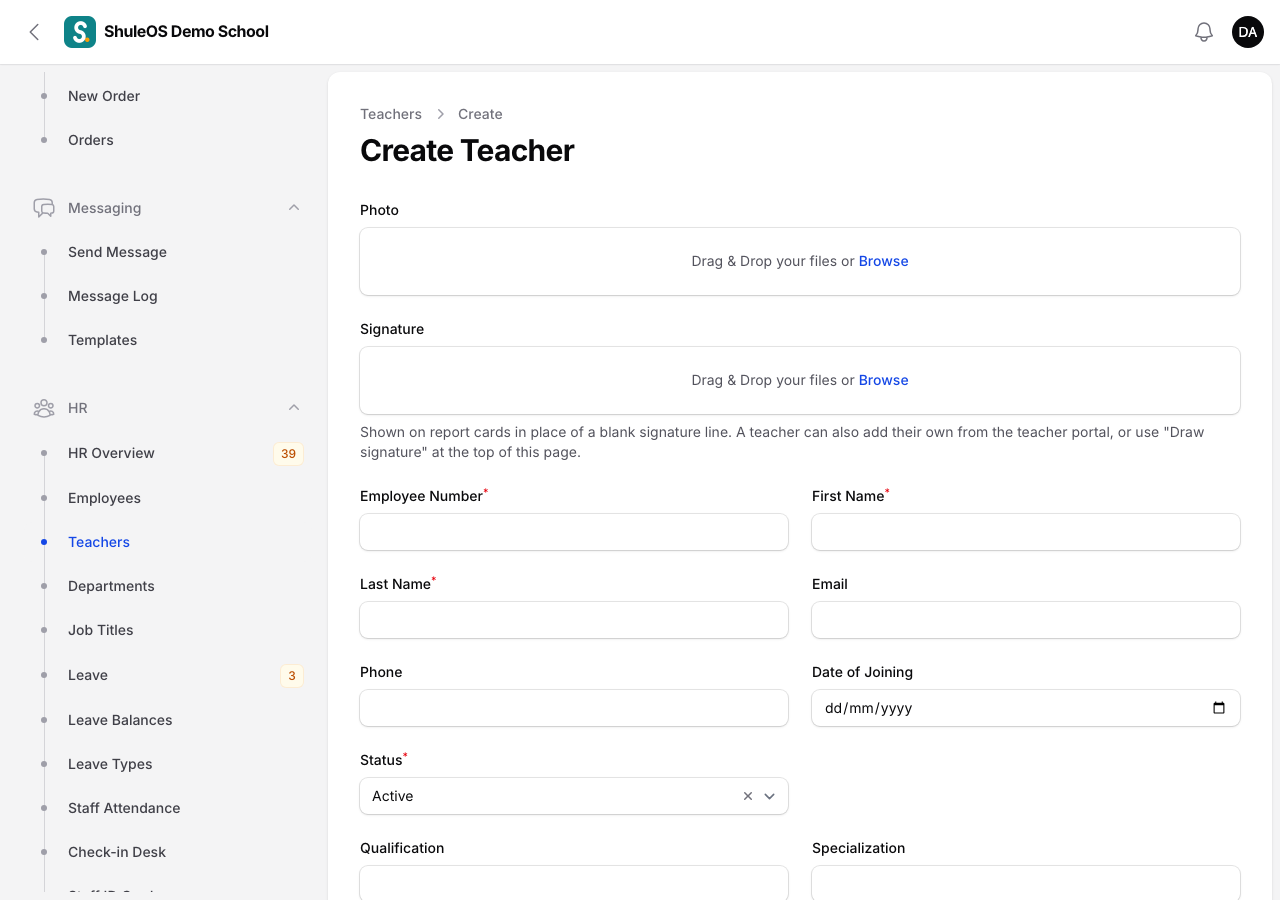
Fill in the form:
| Field | What to enter |
|---|---|
| Photo | Optional. |
| Employee Number | Required, and different for every person at your school. |
| First Name, Last Name | Required. |
| Used as the login email for the portal. | |
| Phone | Optional. |
| Date of Joining | The first day. |
| Status | Active, Inactive or On Leave. |
| Qualification, Specialization | For example B.Ed and Mathematics. |
| Class Teacher | Switch on if this teacher is responsible for a homeroom class. Assigning the class itself is done in Class teachers and subject teachers. |
- Click Create. If the teacher has an email, ShuleOS also creates their portal login and shows "Portal login created" with a random temporary password. Copy it before you close the message: it is shown once. Every teacher gets a different password. The teacher must choose their own password the first time they sign in.
If that email is already used by another account, you see "Portal login not created". Give the teacher a different email, then use Create Portal Login below.
A teacher added here is a normal employee too. Pay details, documents, leave and the check-in PIN are on their employee page (see Add and manage employees). You can also add a teacher from Employees by choosing the category Teacher.
Give a teacher a login
If a teacher has no login (No login in the list):
- Click the Create Portal Login button on their row (the envelope icon).
- Check the Login email. It is filled in from their record. It must not belong to another login.
- Confirm. You see "Portal login created", with a random temporary password, shown once. Copy it and tell the teacher privately; they will be asked to choose their own.
Reset a teacher's password
A teacher who forgot their password has no "forgot password" link. Use Reset Password on their row. A random New password is suggested; keep it or type your own (at least 8 characters), and confirm. You see "Password reset". The teacher must set a new password the next time they sign in.
Edit, view or remove
Each row has View, Edit and Delete. To remove several, tick their boxes and use Delete selected. If a person leaves the school, do not delete them: open their employee record and use Record leaving so their history is kept.
Add a signature for a teacher
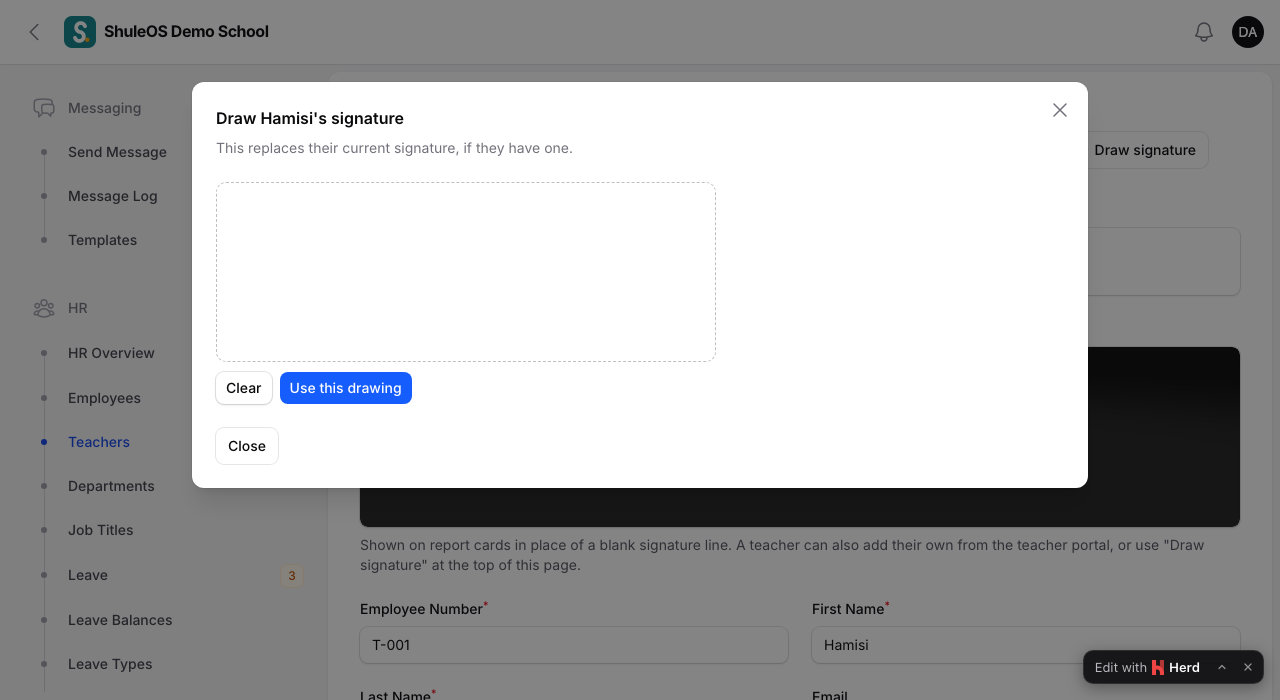
Report cards show the class teacher's own signature. A teacher can add it themselves from the teacher portal, or you can add one for them: open their record and use Signature, either upload a picture or click Draw signature at the top of the page to draw it there and then with the mouse.
See the portal as a teacher
To see exactly what a teacher sees, for example when they say they cannot find their class, click the eye icon (View as this teacher) on their row. The teacher portal opens with an orange bar saying you are viewing as them. It is view only: nothing you do can be saved, so no mark or plan is ever made in their name. Click Stop viewing in the bar to come back. Only the school administrator can do this, and every use is recorded in the audit log. The teacher needs a portal login first.
What teachers can then do
Teachers sign in at the teacher portal, at your school's address followed by /teacher/login. What they can open is set in Account → Settings → Teacher Portal. See the Teacher manual.
If something goes wrong
| What you see | What it means and what to do |
|---|---|
| Portal login not created | The email is already used by another login. Use a different email with Create Portal Login. |
| Blocked (inactive) | The login is switched off. Reinstate the person from their employee page. |
| A teacher signs in but sees very little | The parts of the portal are switched on or off in Settings → Teacher Portal. |
| The teacher is not in the class or subject lists | They need to be assigned in Class teachers and subject teachers. |
Related guides
- Add and manage employeesAdd a member of staff, fill in their job, pay and check-in details, keep their documents, print ID cards, and record when they leave.
- Class teachers and subject teachersChoose the class teacher of each class and stream, and the teacher of each subject in each class, for the current academic year.