
Add a student
Register a new student, place them in a class, and link their parents, so they show up in attendance, exams, fees and the parent portal.
A student is added in three short steps: register them, place them in a class, and link their parents. Only the first step is needed to have a student record, but a student who is not in a class cannot be given attendance, marks or a fee invoice, and a parent who is not linked cannot see the child in the parent portal.
Before you start
- Set up the academic year and the classes first. You place the student in a class in step 2, so the class must already exist. If you have not done this, follow Setup in this manual first.
- Decide the admission number. Every student needs one, and no two students at your school can share it. Many schools use a pattern such as
ADM/2026/0001. - Have the parent's name and phone number ready. The phone number is what the parent signs in with, so a wrong number means they cannot sign in.
- If you have many students to add, use the import file instead (see Import students from a file). Adding one by one is best for a single new pupil.
Your school's package may limit the number of active students. If the limit is reached you will see "Student limit reached" and the student will not be saved. Ask for a bigger package, or mark students who have left as Inactive, Graduated or Transferred.
Step 1: Register the student
-
In the left menu open Students, then Students. You see every student in the school, with a search box and filters.

-
Click New student (the blue button, top right).
-
Fill in the form. The fields marked with a red star are required.
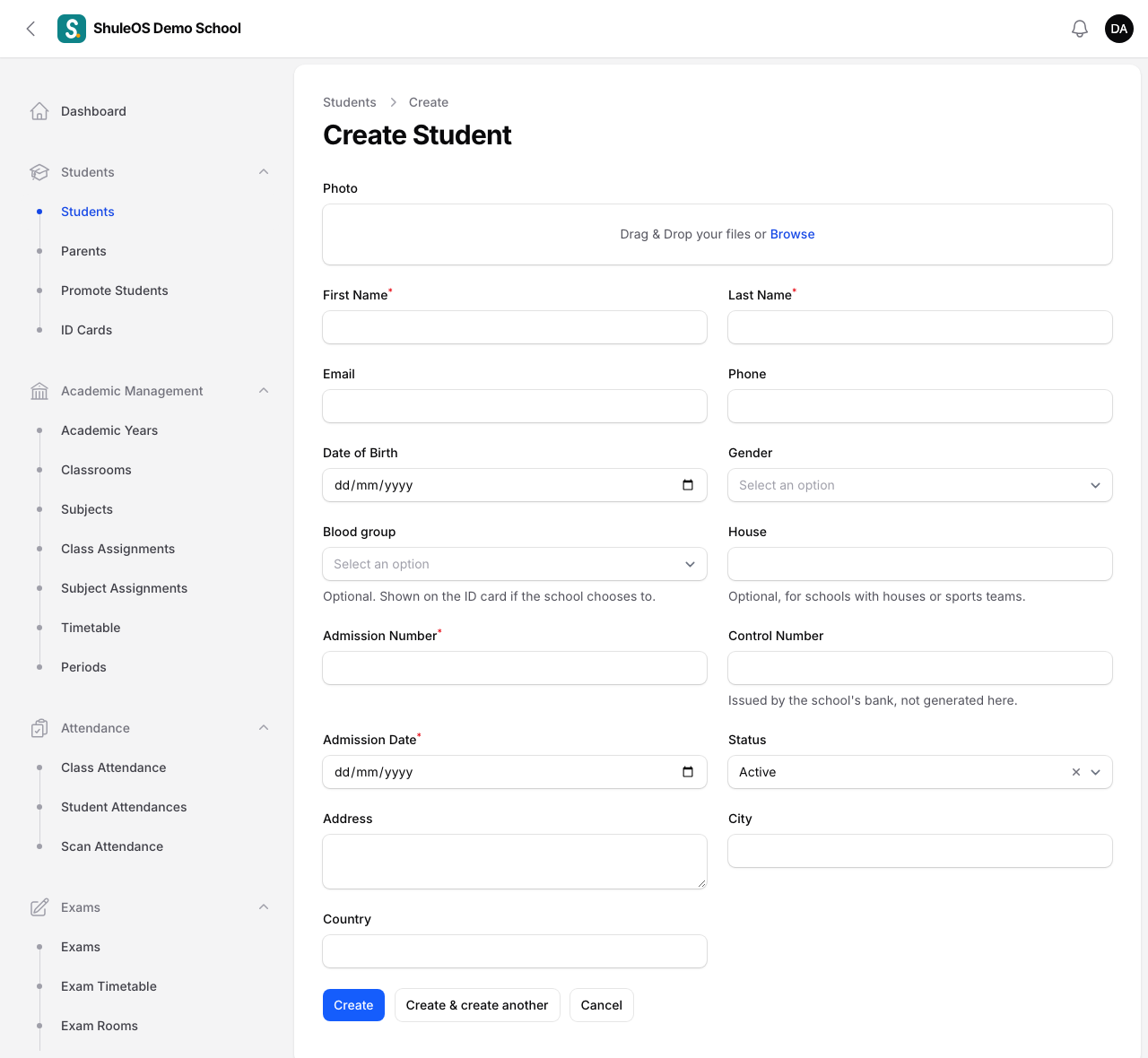
-
Click Create. The student is saved and their page opens. (Create & create another saves and gives you a blank form, which is quicker when you are entering several students in a row.)
What each field means
| Field | What to enter |
|---|---|
| Photo | Optional. Drag a picture in, or click Browse. It appears on the student's page, when you collect fees, and in the parent portal. |
| First Name, Last Name | Required. As written on the birth certificate or school record. |
| Optional. Must not be used by another student. | |
| Phone | Optional. The student's own number, if they have one. |
| Date of Birth | Optional, but enter it if you can: a parent needs it to look up a released report card on the school's public page. |
| Gender | Male, Female or Other. |
| Admission Number | Required. Must be unique in your school. |
| Control Number | Only appears if your school uses bank control numbers for fees. It is issued by the school's bank, so ShuleOS does not create it. Leave it blank until you have it. |
| Admission Date | Required. The day the student joined the school. |
| Status | Active (the default), Inactive, Graduated or Transferred. Only Active students are counted, taught, billed and messaged. |
| Address, City, Country | Optional contact details. |
Admission number already used? You will see a message under the field and the student is not saved. Choose a different number, or search the list: the student may already be registered.
Step 2: Place the student in a class
A student is "in" a class for one academic year at a time. This is called an enrolment.
-
Open Academic Management → Classrooms and click the class (for example Standard 1).
-
Open the Enrolled Students tab under the class (on the class page, or on its Edit page).
-
Click New enrollment. A window called Enroll a student opens.
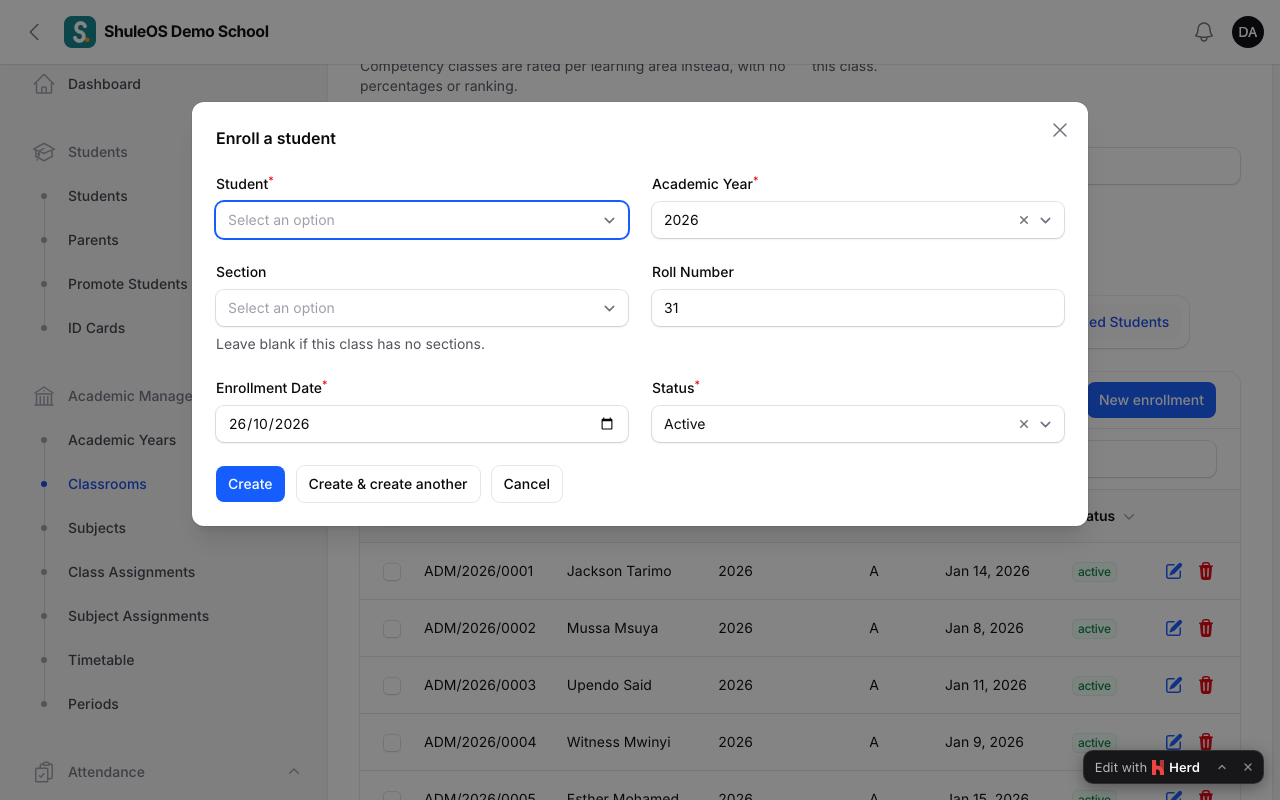
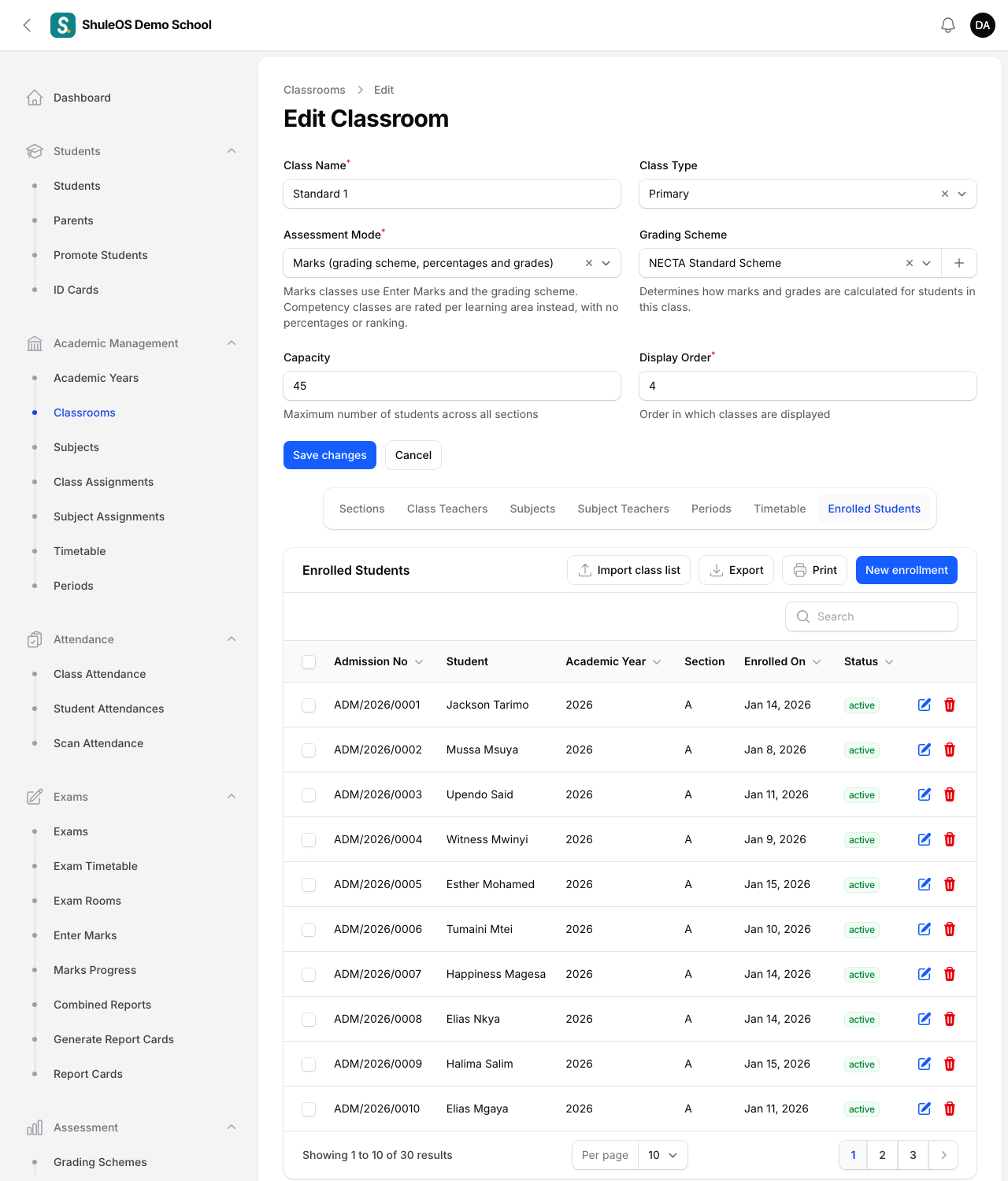
-
Choose the Student (type a name to search), check the Academic Year (the current one is filled in for you), choose the Section (the stream, such as A) or leave it blank if the class has no streams, and check the Roll Number (a number is suggested), the Enrollment Date and the Status (Active).
-
Click Create. The student now appears in the class list, and in that class's attendance and marks.
The same student cannot be enrolled twice in the same class for the same academic year. You will see "This student is already enrolled in this classroom for the selected academic year."
Step 3: Link the parents
-
Open the student (from Students → Students) and click Edit.
-
Under the form, open the Parents tab.

-
If the parent is not yet in the system, click New guardian, fill in their first name, last name, phone, email (optional) and relationship (for example mother or father), then Create.
-
If the parent is already in the system (for example they have another child at the school), click Attach and choose them. Do not create them twice: one parent with two children sees both children in the parent portal.
-
To remove a link without deleting the parent, use Detach on their row.
Phone numbers matter. Parents sign in to the parent portal with their phone number (or email). A parent whose number is wrong or missing cannot sign in until you correct it.
What happens next
Once a student is registered, in a class and linked to a parent:
- They appear on the class attendance register and can be marked present, absent, late or excused.
- They appear in marks entry for their class's subjects, and get a report card when one is generated.
- They can be billed: fee invoices are made for students who are Active and enrolled.
- Their parent can sign in and see their attendance, results, fees and homework.
- Every add, change and delete is recorded in the Audit Log with who did it.
You can review everything about a student, including results, report cards, attendance, behaviour and parents, on the student's page.
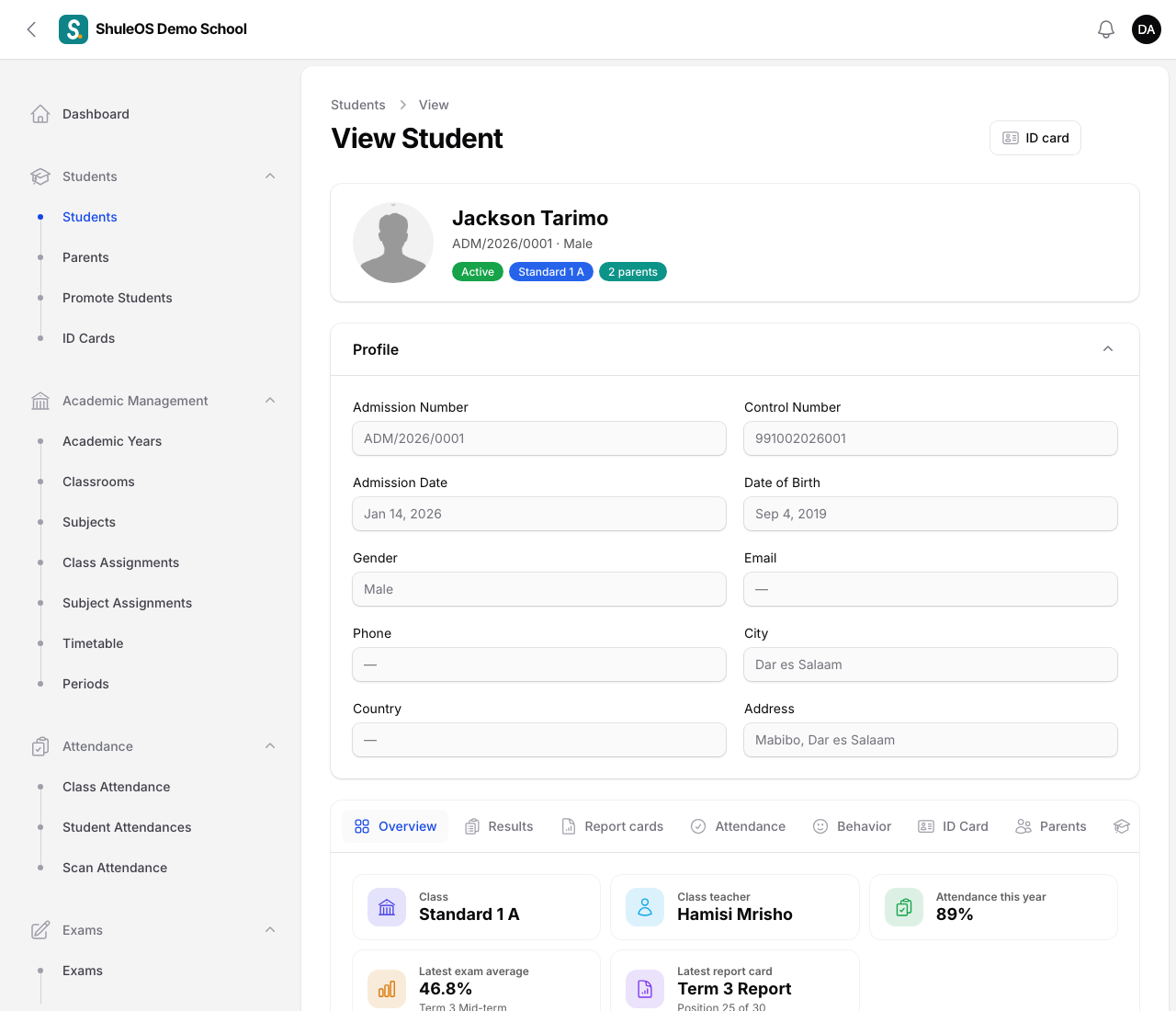
If something goes wrong
| What you see | What it means and what to do |
|---|---|
| Student limit reached | Your package's limit of active students has been reached. Change students who have left to Inactive, Graduated or Transferred, or ask for a bigger package. |
| A message under Admission Number or Email | Another student already has it. Choose a different one, or find that student in the list. |
| The New enrollment button is missing | It is on the Enrolled Students tab of the class. It is hidden if your role is not allowed to change classes. |
| The New student button is missing | Your role does not include adding students. Ask a school admin to change your role. |
| The student is not in the attendance list | They are not enrolled in that class for the current academic year (step 2), or their status is not Active. |