
Class teachers and subject teachers
Choose the class teacher of each class and stream, and the teacher of each subject in each class, for the current academic year.
Two jobs are given to teachers here:
- The class teacher looks after one class (or one stream of it). They take the class's attendance, write report card comments and assess behaviour.
- A subject teacher teaches one subject in one class. They enter the marks for that subject, and the timetable uses them.
Both are set for the current academic year, so at the start of every year you do this again.
Before you start
- Set the current academic year to Active (see Academic years and terms). Without an active year you see "No active academic year. Set an academic year as active before assigning class teachers."
- Add your teachers as staff (see the HR guides): a teacher needs a staff record marked as a teacher, and a login if they will use the teacher portal.
- Create the classes, their streams, and attach the subjects to each class (see Classes and streams).
Assign class teachers
-
Open Academic Management → Class Assignments. The page lists every class and stream with its Class Teacher and an Assign button.

-
Click Assign on the row.
-
In the window choose the Teacher and confirm. You see "Class teacher assigned", and the name changes in the list.
To change a class teacher, click Assign again and choose someone else. Each class or stream has one class teacher at a time.
Assign subject teachers
-
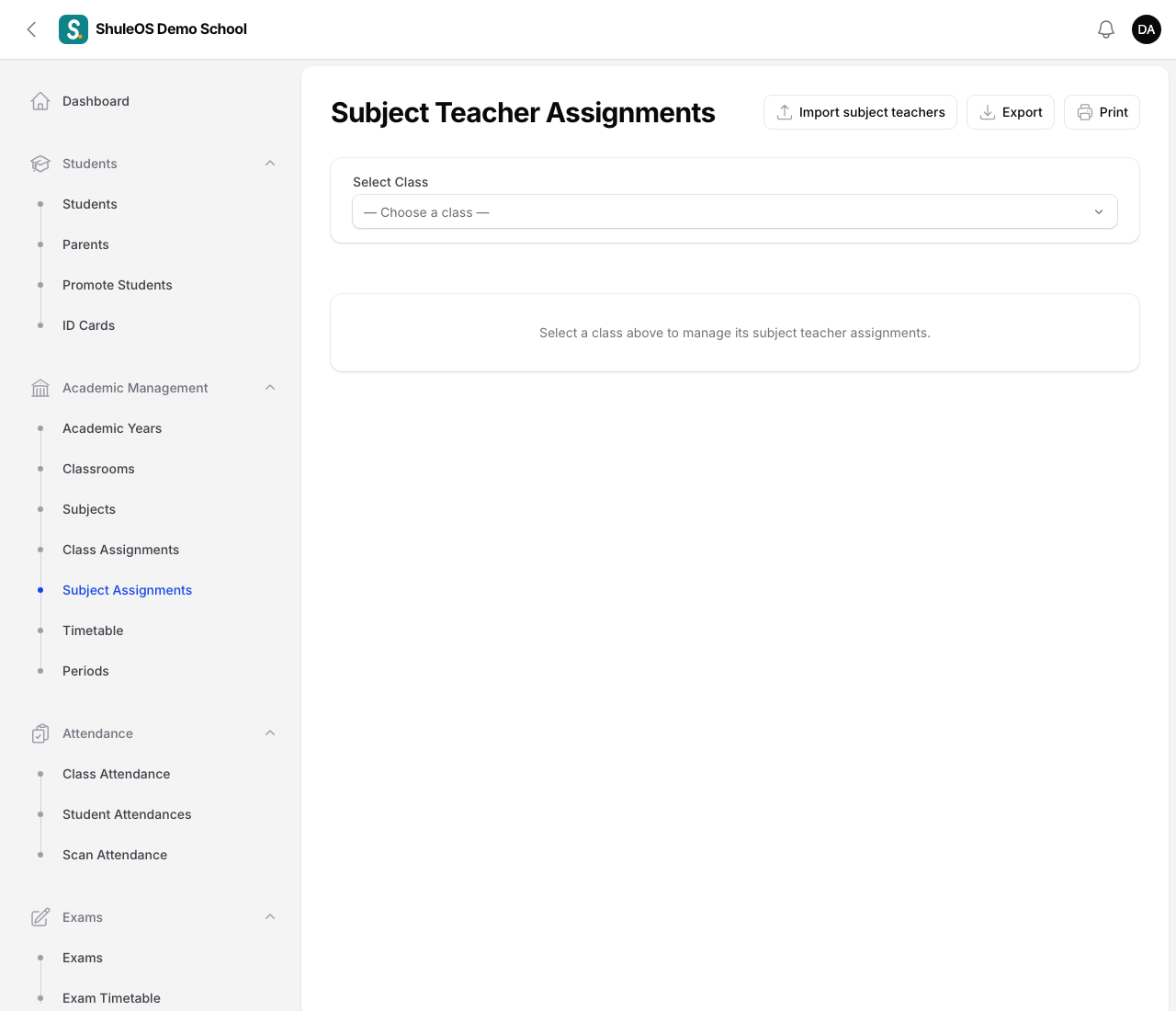
Open Academic Management → Subject Assignments.
-
Under Select Class choose a class. The page then lists every subject of that class with its teacher.
-
Click Assign beside a subject, choose the Teacher, and confirm. You see "Subject teacher assigned".
Only subjects attached to the class are listed. To add a subject to a class, use the class's Subjects tab.
Assign many at once from a file
Both pages have an Import button (Import class teachers, Import subject teachers) with a blank template and a sample file. Fill in one row per assignment, upload it, read the preview, then save. You see, for example, "Class teachers saved: 12 added, 2 changed."
Export and print
Use Export (Excel-friendly CSV or Excel .xlsx) or Print for a list of who teaches what. The printed list is handy for the staffroom notice board.
What the assignments are used for
- The class teacher sees their class in the teacher portal's My Classes, takes its attendance and writes report card comments.
- The subject teacher sees the subject in Enter Marks and in the timetable.
- The timetable generator builds a class's week from its subjects and their subject teachers, and never puts a teacher in two places at once. See Periods and timetable.
- Parents see the class teacher's name on their child's page.
If something goes wrong
| What you see | What it means |
|---|---|
| No active academic year | Make an academic year Active first. |
| A teacher is missing from the list | They are not set up as a teacher in HR. Add or fix their staff record. |
| A subject is missing for a class | It is not attached to that class. Attach it on the class's Subjects tab. |
| The teacher cannot see the class | Assignments are per year: check the year is the active one. |
Related guides
- Classes and streamsCreate the school's classes, choose how each is assessed, add streams (sections), and choose the subjects each class takes.
- SubjectsCreate the subjects your school teaches, give each a code, and switch old ones off without losing their history.
- Periods and timetableSet the school day's lessons and breaks, then build each class's weekly timetable by hand, from a file, or generated automatically.