
Expense report
See how much the school spent, by category and by account, over any dates, and how big each share is.
Checked on the ShuleOS demo school
Who: Bursar, head teacher, school admin 3 min read
Open Reports → Expenses.
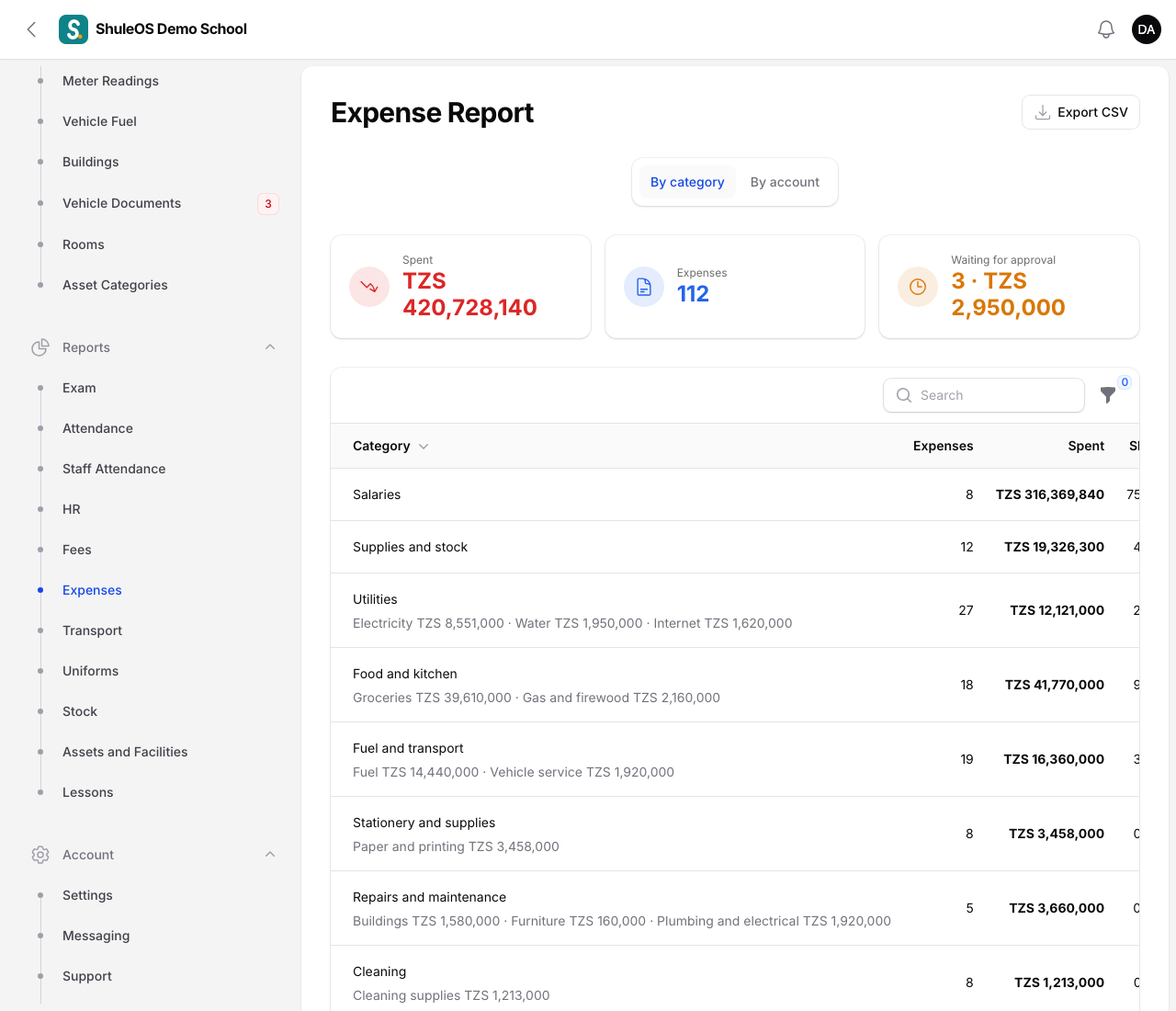
- Set From and Until to choose the period, and use the filters to narrow it (for example one category).
- The cards show the total Spent and, separately, how many expenses are still waiting for approval and how much they come to.
- Choose a tab:
| Tab | What it shows |
|---|---|
| By category | Each category with the number of expenses, the amount Spent and its Share of the total. |
| By account | The same, by the account the money was paid from. |
Click Export CSV to download what you are looking at.
Only expenses that were paid (approved) count as spent. Expenses waiting for approval are shown separately, and rejected or cancelled ones are not counted.
If something goes wrong
| What you see | What it means |
|---|---|
| The report is empty | No paid expenses fall in the dates chosen. |
| A total is lower than expected | Some expenses are still waiting for approval. |