
Fee types and installments
Create the things you charge for (tuition, meals, transport…) and the installments they are paid in (Term 1, 2 and 3), with their due dates.
Fee types
A fee type is one thing the school charges for, such as Tuition, Meals or Exam fee.
-
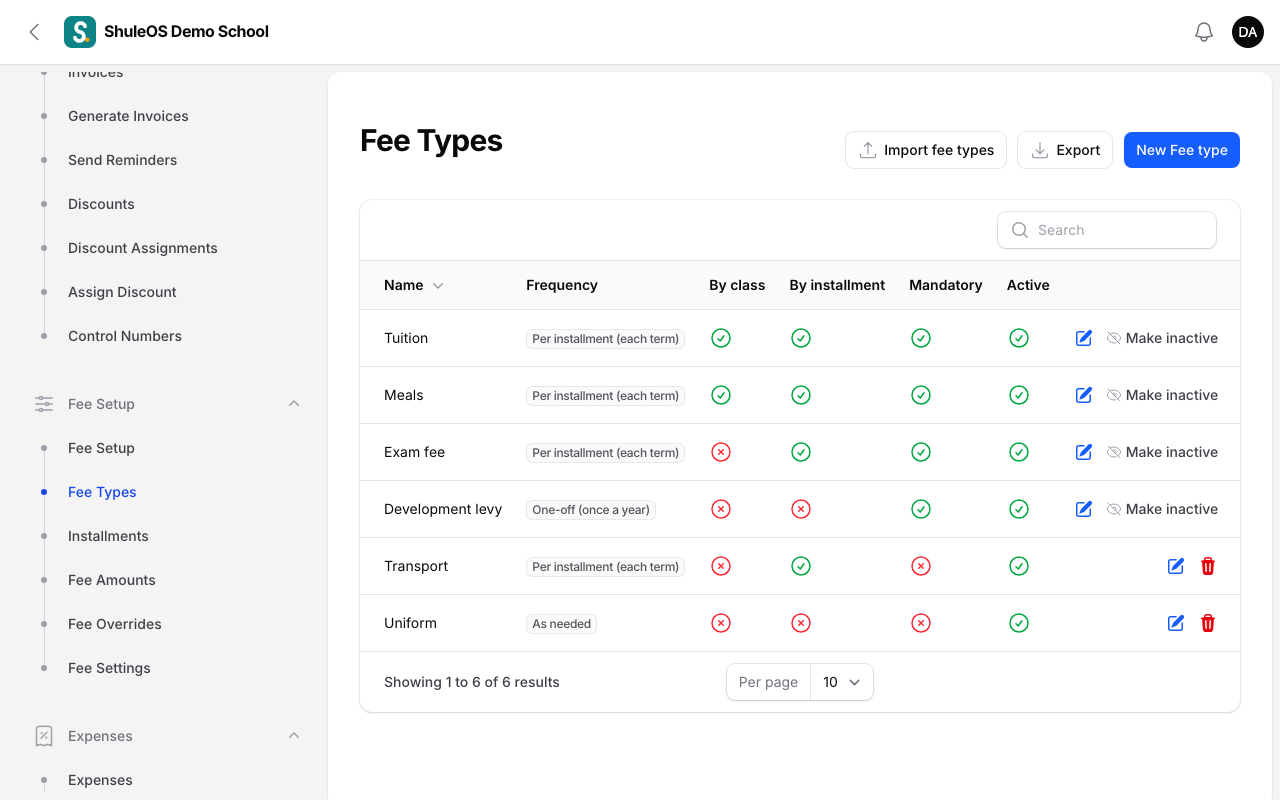
Open Fee Setup → Fee Types. The list shows each type with its Frequency, whether it varies By class and By installment, whether it is Mandatory and whether it is Active.
-
Click New Fee type.

| Field | What to enter |
|---|---|
| Name | Required. Must be different from other fee types ("This school already has a fee type with that name."). |
| Frequency | How often it is charged: Per installment (each term), One-off (once a year), Monthly or As needed. It is used when invoices are generated. |
| Display order | Lower numbers appear first. |
| Varies by class | On: a different amount for each class. Off: one amount for the whole school. |
| Varies by installment | On: a different amount for each installment. Off: one amount for the whole year. |
| Mandatory | Switch off for optional fees, such as a trip or a club. |
| Active | Inactive fee types are kept for their history but cannot be billed again. |
- Click Create.
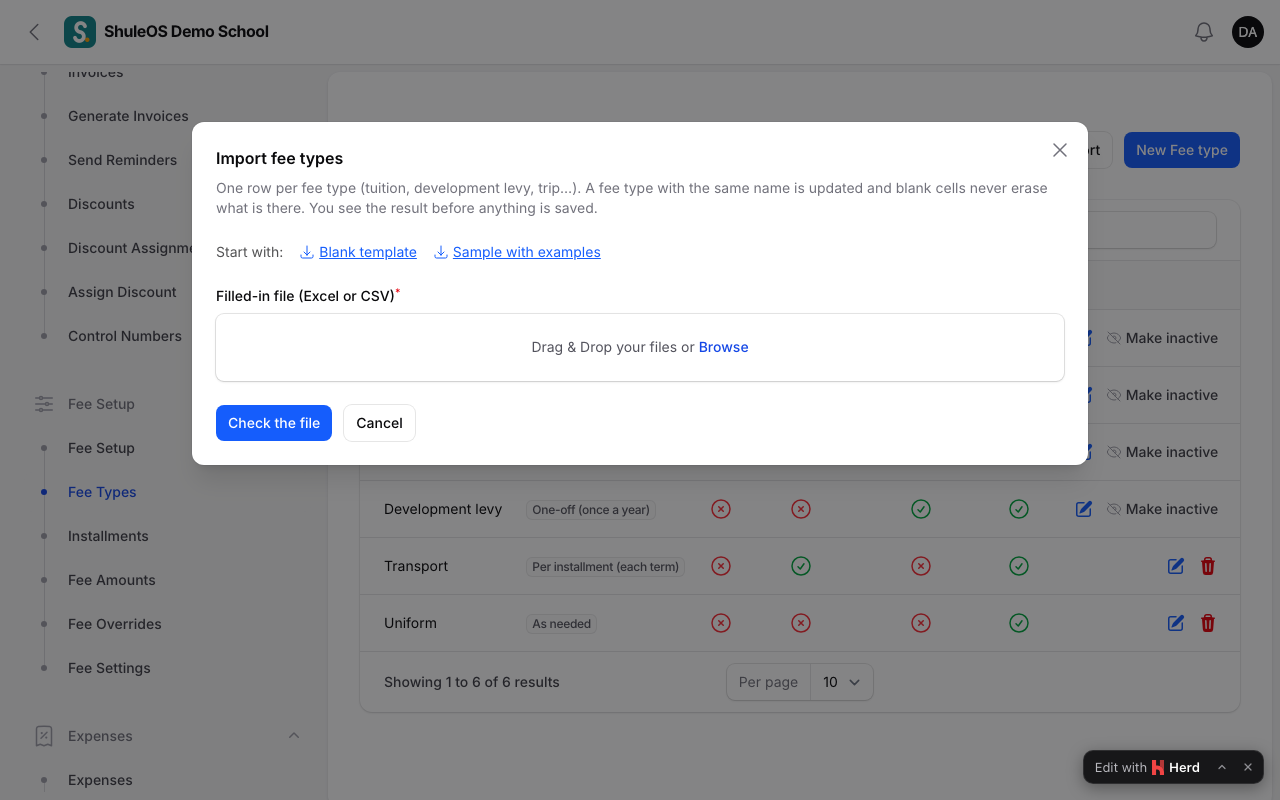
Use Make inactive on a row to retire a fee type without losing its history. To load many at once, click Import fee types (template and sample included, with a preview).
Transport and uniform work a little differently. Most students take neither, so they are not priced by class like tuition. Create a fee type named Transport and one named Uniform (not varying by class or installment): a transport route or uniform item points to it, so that discounts can target it and reports group it. The prices are set on the route and on each uniform item. See the Transport and Uniforms guides.
Installments
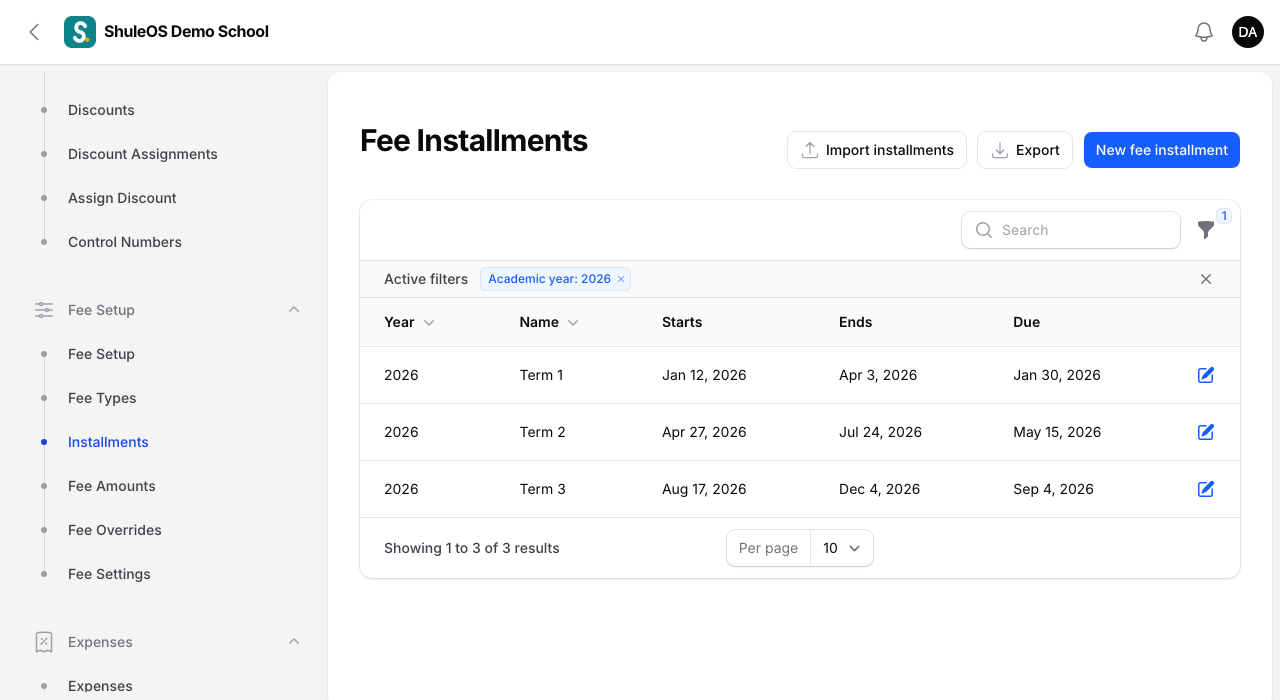
An installment is one payment period in a year, usually a term.
-
Open Fee Setup → Installments. Use the Year filter.
-
Click New fee installment.
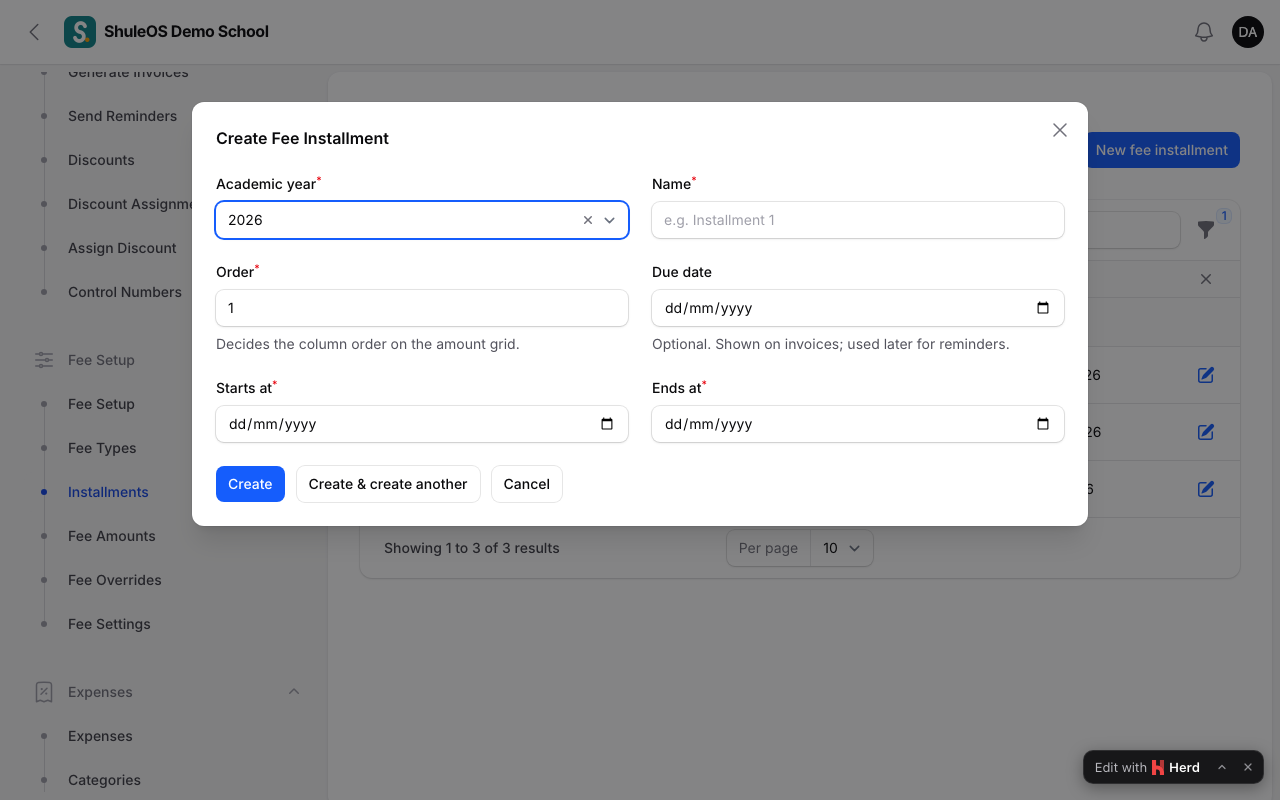
| Field | What to enter |
|---|---|
| Academic year | Required. |
| Name | For example Term 1. It must be different from other installments in the same year. |
| Order | Decides the column order on the amount grid. |
| Due date | Optional. Shown on invoices and used for reminders. |
| Starts, Ends | The period the installment covers. The end must be on or after the start. |
- Click Create. Most schools create one installment per term, and can import them from a file (Import installments).
If something goes wrong
| What you see | What it means |
|---|---|
| This academic year already has an installment with that name | Choose another name. |
| The end date must be on or after the start date | Correct the dates. |
| A fee type cannot be billed | It is inactive. |
| The amount grid has no columns | The year has no installments yet. |
Related guides
- Fee setup: the order to do it inGet the school's fees ready for a year: settings, fee types, installments and amounts, with a checklist that shows what is still missing.
- Fee amountsSet how much each fee type costs for each class and installment, copy last year's amounts, and import them from a file.