
Leave requests and leave balances
Record and decide staff leave, see who is away, and check how many leave days each person has taken and has left.
Staff leave has two screens. HR → Leave is the list of requests and where you approve them. HR → Leave Balances shows, for a year, what each person has used and what is left.
How leave is counted
- Leave is counted in working days: Monday to Friday, without the days the school calendar closes the school.
- A request that overlaps other leave by the same person is refused: "Already on leave from … to …".
- A request with no working days (only a weekend, for example) is refused.
- Only approved leave counts against a person's balance. Leave still waiting is shown separately.
- Unpaid leave types reduce pay when payroll is run. Approved leave also shows as On leave in staff attendance without anyone marking it.
The Leave list
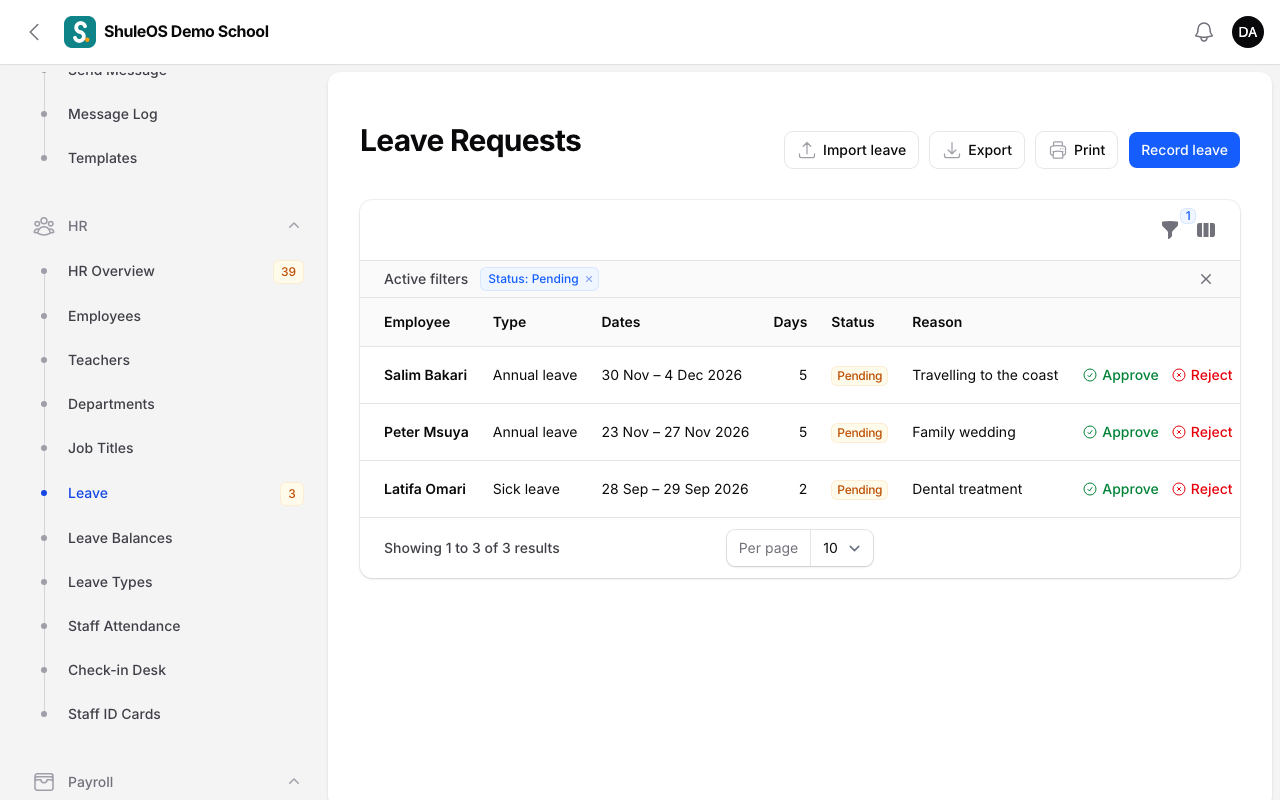
Each row shows the Employee, Type, Dates, Days, Status and Reason. Filter by Status, Type or Employee. Import leave, Export and Print (the leave register) are on the top bar.
The statuses are Pending (waiting for a decision), Approved, Rejected and Cancelled.
Record leave
Teachers and other staff can ask for leave from their own portal (see the Teacher manual). HR can also record it here, for example when someone tells the office in person.
-
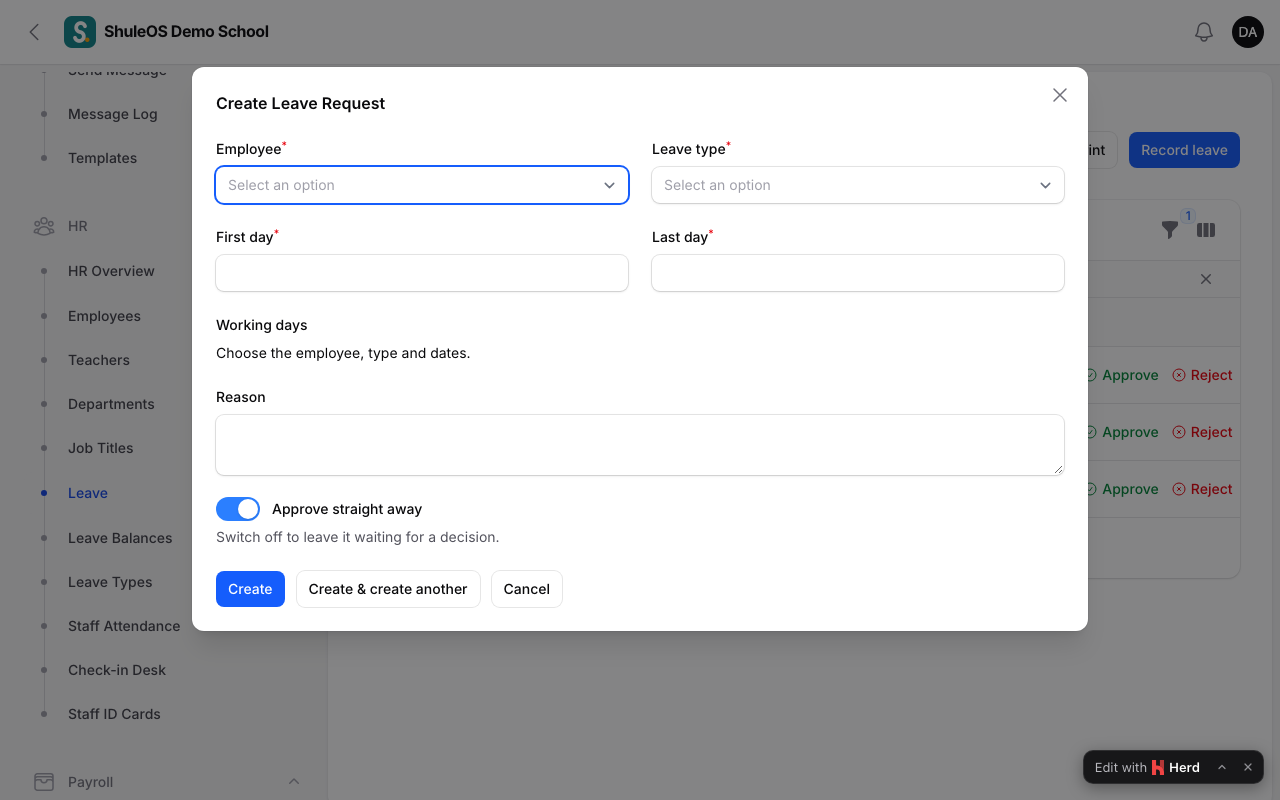
Click Record leave.
-
Choose the Employee and the Leave type, and enter the First day and Last day. The window shows the Working days it comes to.
-
Add a Reason if you wish.
-
Approve straight away is on by default. Switch it off to leave the request waiting for a decision.
-
Click Create. You see "Recorded".
Decide a request
For a request that is Pending, use the buttons on its row:
- Approve: optionally add a Note. You see "Leave approved".
- Reject: give the Reason. You see "Leave rejected".
- Cancel: withdraws a request that was not decided, or leave that was approved and is no longer needed. You see "Leave cancelled".
The number on the HR Overview page counts requests waiting for a decision, so you do not have to remember to look.
Leave balances

HR → Leave Balances has one row per person and one column per leave type. Choose the year at the top. Each cell shows how many days are left, and underneath, how many are taken out of the total, and how many more are waiting for a decision (for example "5 of 28 taken, 2 waiting").
- A type with no limit shows how many days were "taken" instead.
- A cell turns red when the person has used more than their allowance, and amber when they have used all of it.
If something goes wrong
| What you see | What it means and what to do |
|---|---|
| "Already on leave from … to …" | This person already has leave that overlaps. Change the dates or cancel the other request. |
| "Those dates have no working days" | The dates are a weekend or closed days. Pick dates that include school days. |
| A leave type is missing from the list | It is inactive. Make it active in HR → Leave Types. |
| The balance is too high or too low | Only approved leave counts. Approve or reject waiting requests, and check the year at the top. |
| A person's leave was cancelled without you doing it | They were marked as having left the school. Leave after their last day is cancelled automatically. |
Related guides
- HR setup: departments, job titles and leave typesThe three short lists you set up before adding staff, so each employee can be placed in a department, given a job title, and asked for the right kinds of leave.
- Staff attendance and the check-in deskRecord who came to work each day, either by marking the list or with a PIN at the check-in desk, and see the monthly report.