
Transport assignments and reports
Put students on a bus route and stop, see who owes for transport, and print route lists.
A transport assignment says "this student rides this route, and gets on at this stop". It is also what bills the student: they are charged the route's price on their invoice.
Before you start
- The route, its stops, and the vehicles are set up (see Transport routes, vehicles and drivers).
- The fee installments exist for the year.
Assign a student
-
Open Transport → Assignments. The list shows each student's route, pickup point, year, installment and notes. Filter by Academic year and Route.

-
Click New Transport assignment and fill in:
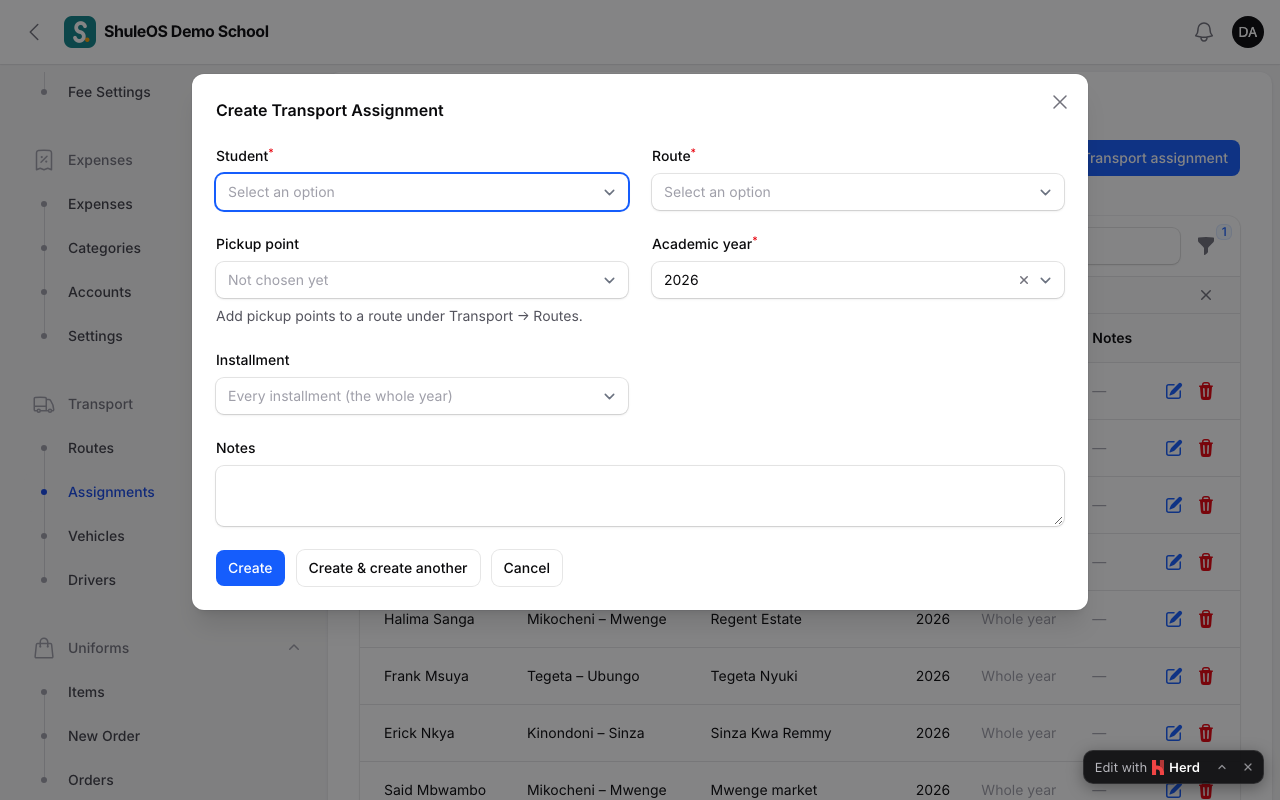
| Field | What to enter |
|---|---|
| Student | Search by name or admission number. |
| Route | Only active routes are offered. |
| Pickup point | A stop on that route (add stops on the route first). |
| Academic year | The year it applies to. |
| Installment | Choose one to bill only that term, or leave it empty for the whole year. |
| Notes | Optional. |
- Save.
You can also assign students from a vehicle's page (the Students tab, Assign student), which uses that vehicle's route.
Use Import transport assignments to load many from a file. Export and Print give you the list.
How it bills the student
When you generate invoices, every student assigned a route gets a "Transport: (route name)" line added to their installment invoice, for the route's price. A student assigned for one installment is billed only for that installment. If the student was invoiced before you assigned them, void and generate that invoice again, or post an adjustment.
Route lists
On Transport → Routes, Route list prints the route: its stops with pickup and drop-off times, and the students for the year. Give it to the driver.
The transport report
Open Reports → Transport. Choose the Academic year.
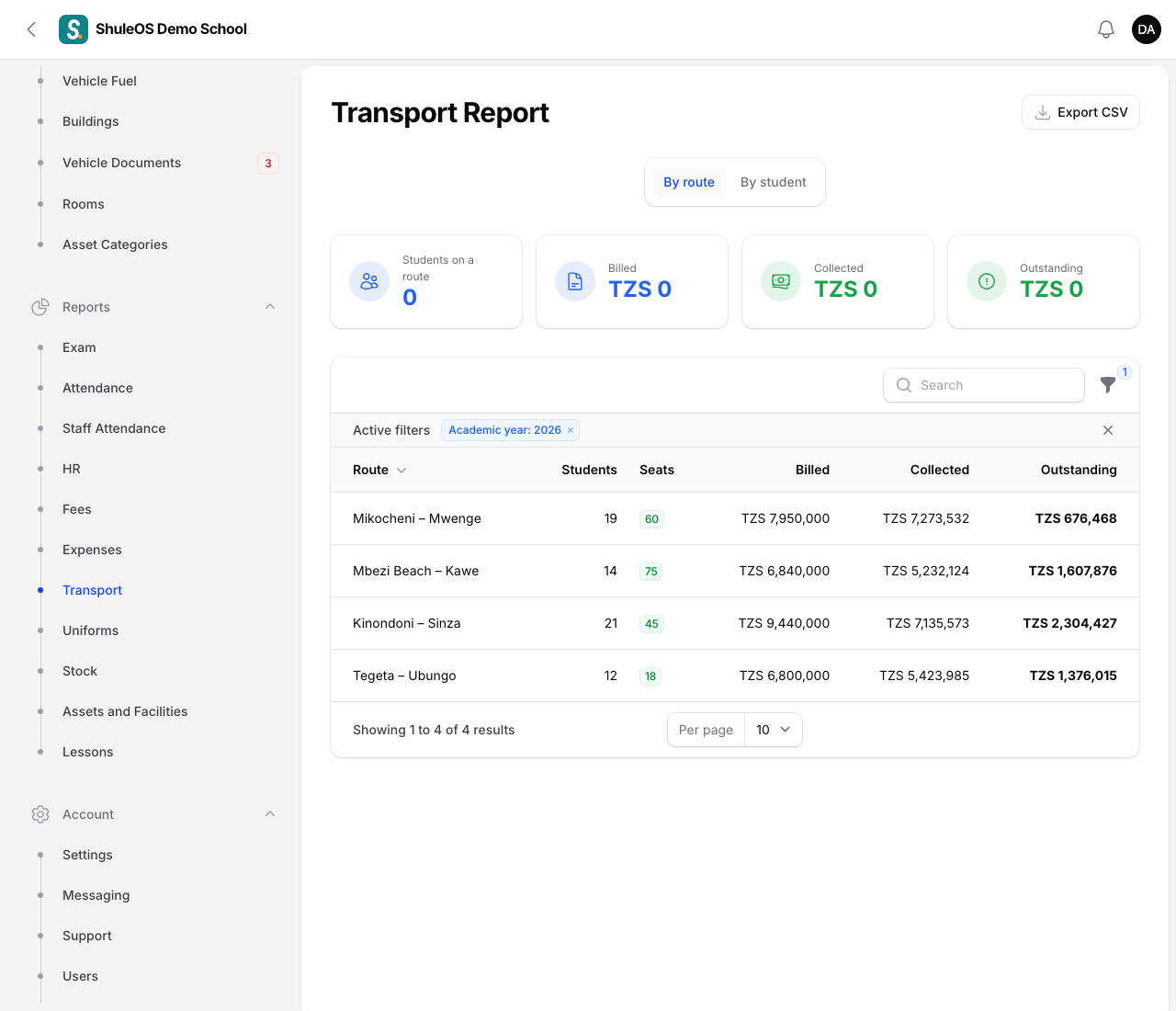
| Tab | What it shows |
|---|---|
| By route | For each route: its Students, Seats, and the amounts Billed, Collected and Outstanding. |
| By student | Each rider with what they owe for transport. |
Export CSV downloads what you see.
If something goes wrong
| What you see | What it means |
|---|---|
| The pickup point list is empty | The route has no stops. Add them on the route. |
| A student was not charged | They were invoiced before being assigned, or the assignment is for another installment or year. |
| The route shows more students than seats | See the route's "More students than seats" note. Add a vehicle or move students. |
Related guides
- Transport routes, vehicles and driversSet up the school bus service: routes with their pickup points and price, the vehicles and their seats, and the drivers, who are staff.
- Generate invoices, and correct themBill a whole school or chosen classes for an installment or the year's one-off fees, look at invoices, void a wrong one, post adjustments and opening balances.