
Report card comments
Write your comment on each child's report card, or let ShuleOS suggest one from the results, and preview or print the cards.
Each report card has a comment from the class teacher. Report Comments is where you write them, once the report cards have been generated by the office.
Open your class's report
-
Click Report Comments. Your class is shown at the top right (for example "Standard 1"). Check the academic year.
-
Choose the report from the list (for example "Term 2 Report").
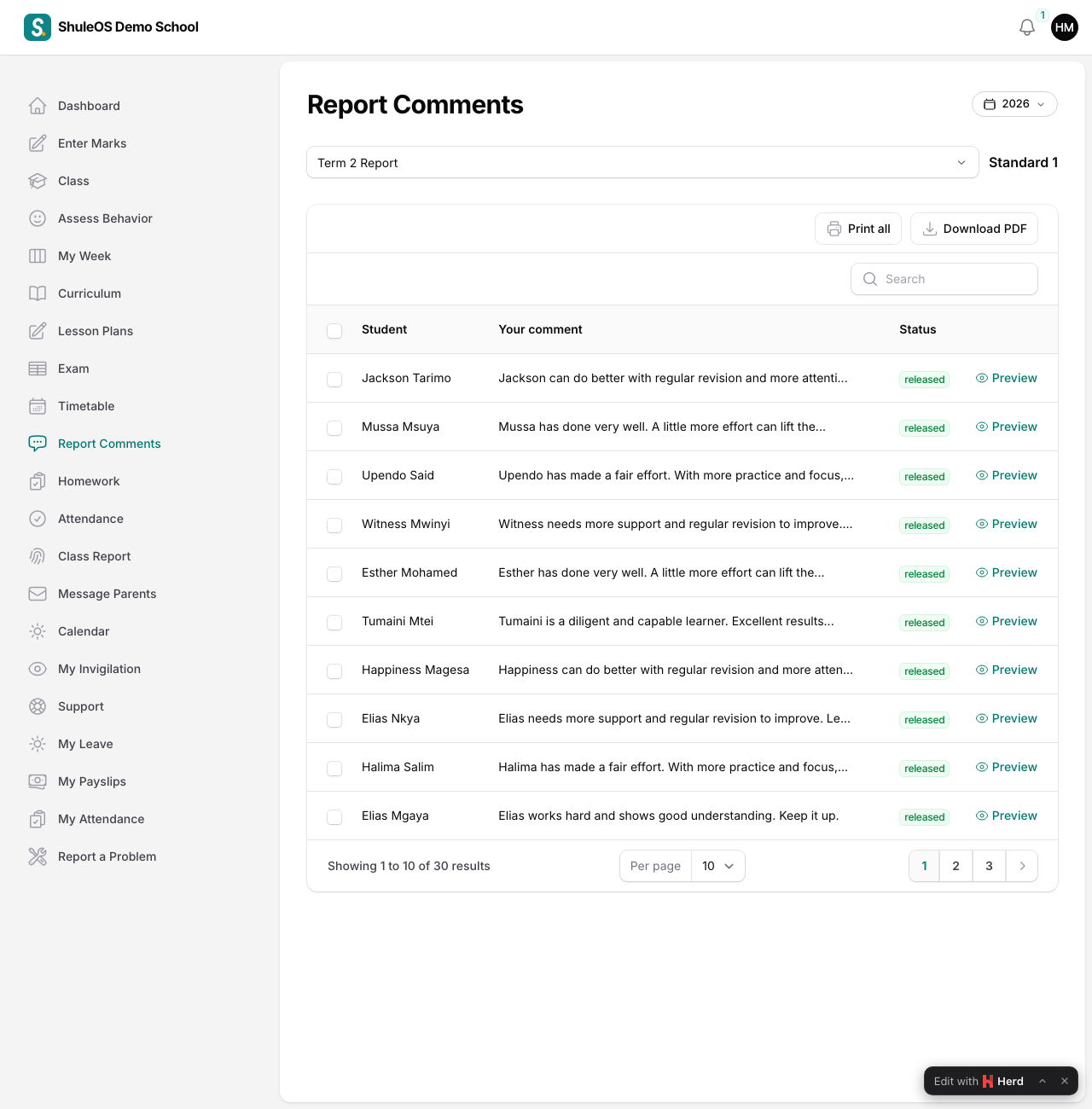
You see every child in your class with Your comment (the start of it, or a dash if none) and the Status of the card. Use Search to find a child.
The statuses tell you where each card is: a card that is still being prepared can be commented. A card that has been released to parents is finished, so it can only be previewed.
Write a comment
Click Comment on a child's row. A window opens with Class Teacher's Comment. Write it and click Save. A comment can only be written while the card is not yet released.
Let ShuleOS suggest comments
To save time, ShuleOS can suggest a comment for each child from their results:
- Tick the children (tick the box at the top of the table for the whole class).
- Choose Automatic comments from the bulk actions.
- Leave Replace comments that are already written off, unless you want to overwrite what you wrote.
- Confirm. You see "Comments added to … report card(s)".
The suggestions are only a start. Open each child and change what does not fit, so that the comment is truly yours.
Preview and print
- Preview on a row shows the child's report card, with a Print button.
- Print all prints the whole class's cards. Download PDF makes one PDF with a card on each page. It is prepared in the background, so you see "Preparing the PDF…" and get a notice on the bell when it is ready.
After you finish
The office checks the cards and releases them. Parents then see them in the parent portal. Only the office releases report cards.
If something goes wrong
| What you see | What it means and what to do |
|---|---|
| Report Comments is missing | You are not the class teacher of a class this year, or the school has switched it off. |
| "Choose a report" | No report is chosen yet. Pick one from the list. |
| The report you want is not in the list | The office has not generated it yet. |
| Comment is missing on a child | The card is already released. Ask the office if it must be changed. |
| "This academic year is read-only" | Switch to the current academic year at the top. |
Related guides
- Enter marksChoose a class and subject and an exam, type each child's marks, mark absent or exempt children, or import the marks from a file, and save.
- Assess behaviour and competenciesRate each child in your class on the behaviour criteria, and, for classes assessed by competency, on each learning skill, so the ratings appear on their report cards.