
My week and lesson plans
See your week's lessons, plan each lesson from the week view, record what you taught, and copy a plan to another day.
A lesson plan is your note of what you will teach and how. You plan it before the lesson and mark it taught afterwards, and the school can see how much of the term has been planned and covered.
My Week
My Week shows your lessons for one week, day by day, taken from your timetable.

- Use the arrows at the top to go to the previous or next week. The bar shows Lessons planned, for example "4 of 34".
- Each day is a card, with the number of lessons and how many are planned. Each lesson shows the time, subject and class.
- A lesson that has a plan shows its topic and a status, such as Taught, with an Open link. A lesson with no plan says "Not planned yet" and has a Plan button.
Click Plan on a lesson to make a plan for it. The class, subject, date and time are already filled in.
Lesson Plans
Lesson Plans lists all your plans.

Each row shows the Date, Class, Subject, Topic, Status and Reviewed (whether the head teacher or academic officer has looked at it). Filter by Status, Class and a range of dates.
Plan a lesson
-
Click Plan a lesson (or Plan in My Week).
-
Fill in the form, in three parts:
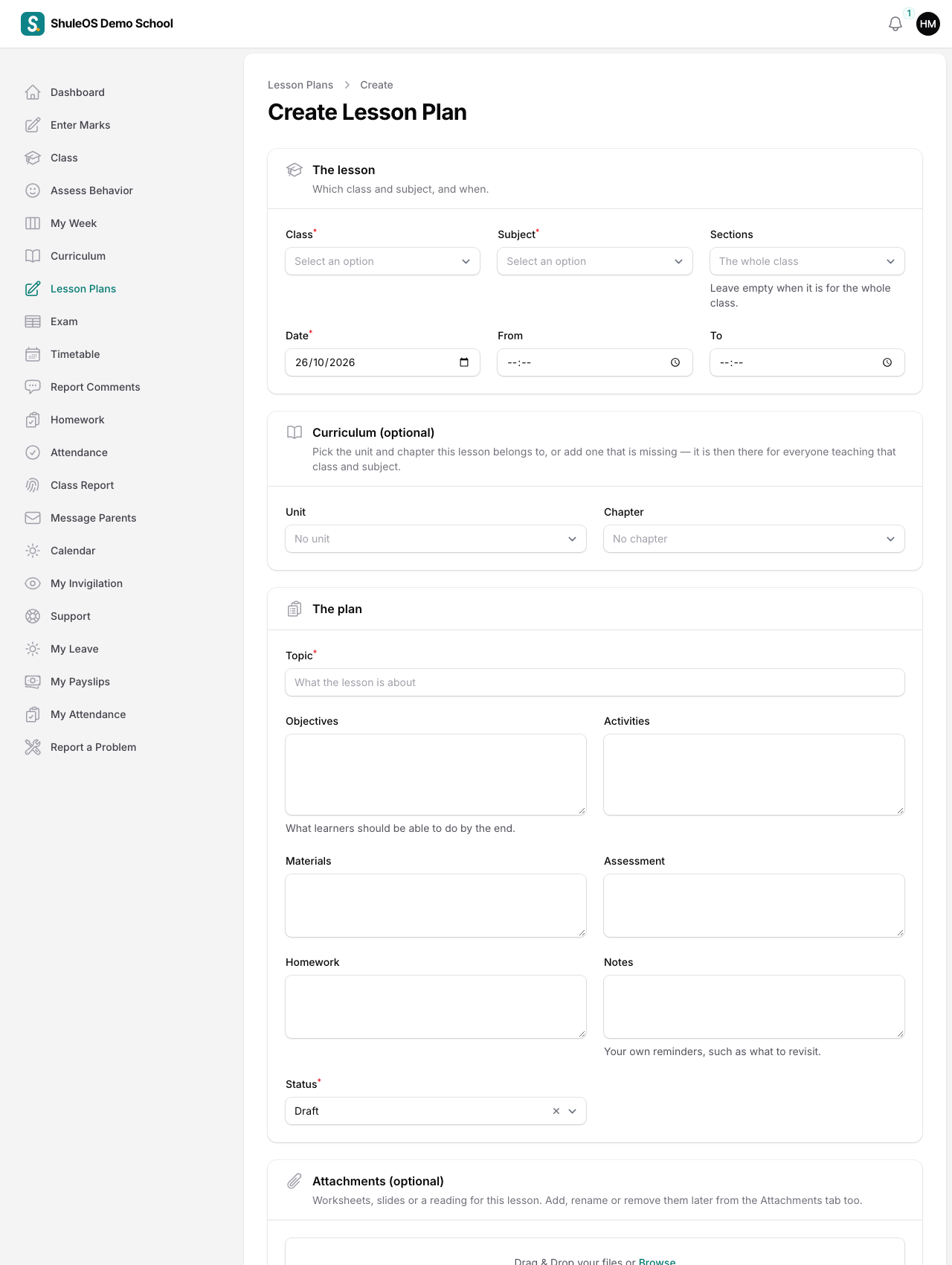
| Part | Field | What to enter |
|---|---|---|
| The lesson | Class, Subject | Required. Only what you teach is listed. |
| Sections | Leave empty when the lesson is for the whole class. | |
| Date, From, To | The day and the times. | |
| Curriculum (optional) | Unit, Chapter | Pick the unit and chapter this lesson belongs to. If one is missing, add it from here and everyone teaching that class and subject can use it. |
| The plan | Topic | Required. What the lesson is about. |
| Objectives | What learners should be able to do by the end. | |
| Activities, Materials, Assessment | How you will teach, what you need, and how you will check learning. | |
| Homework | What you will set. | |
| Notes | Your own reminders, such as what to revisit. | |
| Status | Required. Draft (still being written), Taught, or Taught — class needs it again. |
- Click Create.
After the lesson
On a plan's row you have shortcuts:
- Taught: the lesson happened as planned.
- Needs another go: you taught it, but the class did not get it, so you will come back to it. The status becomes "Taught — class needs it again".
- Copy: make a new draft with the same content for another class and date. Choose the class and date, and confirm. This is the quickest way to plan the same lesson for two classes or two weeks.
Your head teacher or academic officer may read your plans and mark them Reviewed. The office also has a lesson report that shows how much of the curriculum each class has covered (see the School Admin manual, "Lesson plans, homework and lesson reports").
Curriculum
Curriculum lists the units and chapters of the classes and subjects you teach. It is the same list you pick from when you plan a lesson, and everyone teaching that class and subject sees it.

- Click Add a unit.
- Choose the Class and Subject (only what you teach is listed), then enter the Unit no. (optional) and the Unit name.
- Under Chapters, click Add a chapter for each chapter. You can add the number of Periods and some Suggested activities; both are optional.
- Click Create.
To correct a unit or add more chapters later, click Edit on its row. You cannot delete a unit; ask the school office if one must go.
If something goes wrong
| What you see | What it means and what to do |
|---|---|
| My Week, Curriculum or Lesson Plans is missing | The school has switched lessons off for teachers, or its package does not include them. |
| A lesson is missing from My Week | It is not on your timetable. Tell the office. You can still make a plan from Lesson Plans. |
| A class or subject is missing in the form | It is not assigned to you. |
| You cannot find the unit or chapter | Add it from the form; it is then there for everyone teaching that class and subject. |