
Sign in and find your way around
Sign in to the parent portal with your email or phone number, choose your own password, and read your home page and menu.
The parent portal shows you how your child is doing at school: attendance, results, report cards, fees, homework and messages. It is free to use, and you see only your own children.
Get your login
Your child's school creates your login. Ask the school office for it if you do not have one. The office may send you your sign-in details by SMS or email. You sign in with your email or phone number, whichever the school has recorded for you, so make sure the school has your correct number.
Sign in
-
Open the parent sign-in page. The address is your school's website address followed by
/parent/login, or use the Parent button on your school's own page.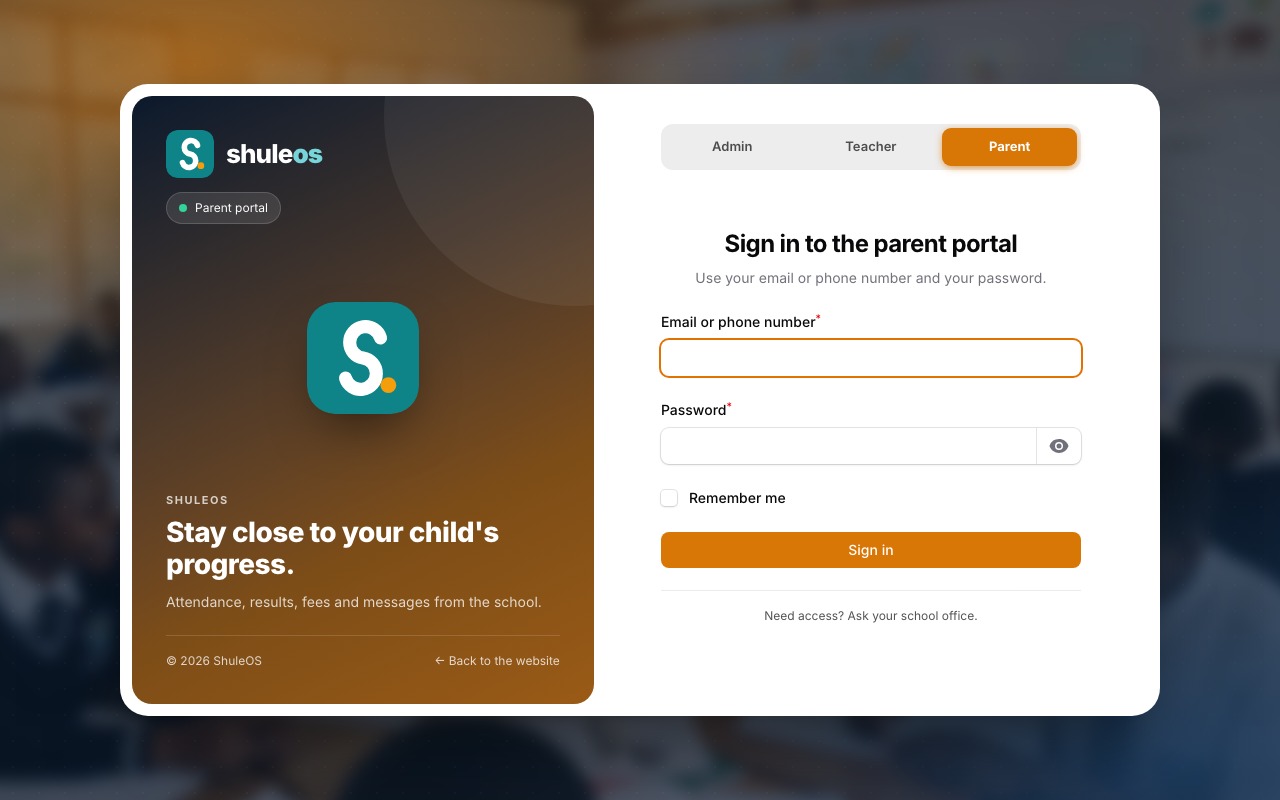
-
Type your email or phone number and your password. Tick Remember me on your own phone or computer if you do not want to sign in every time.
-
Click Sign in.
If the details are wrong you see a message "Could not sign in" and a note under the field. Check for a typing mistake and try again.
Choose your own password
The first time you sign in, ShuleOS asks you to choose a new password, because the school gave you a temporary one. Type it twice and click Set New Password. Choose something only you know.
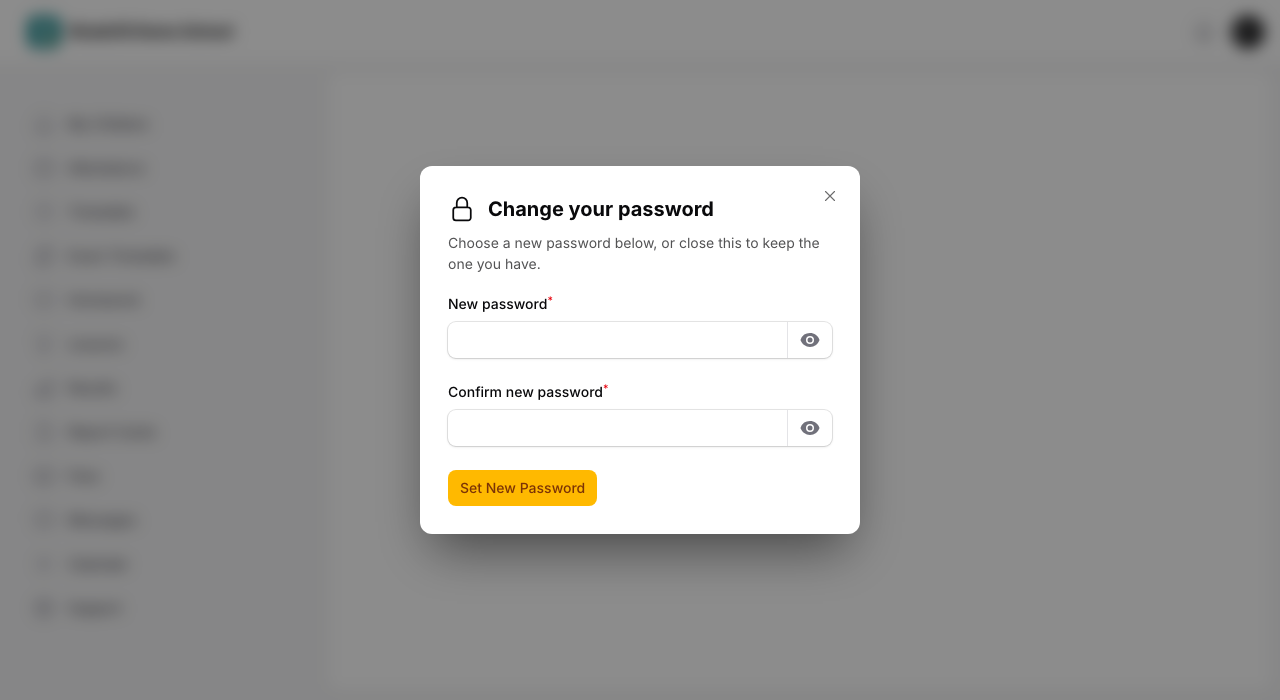
To change it again later, click your initials at the top right and choose Change password. This time there is a × to close it without changing anything, since it is your own choice, not something ShuleOS is requiring. The same menu has My profile, where you can correct your own name, add a photo, update your phone or email (you sign in with these, so keep them correct) and your address and occupation.

If you forget your password, ask the school office to reset it. They give you a new temporary password, and you choose your own when you sign in again. Never share your password, not even with the school.
Your home page: My Children
After you sign in you land on My Children.
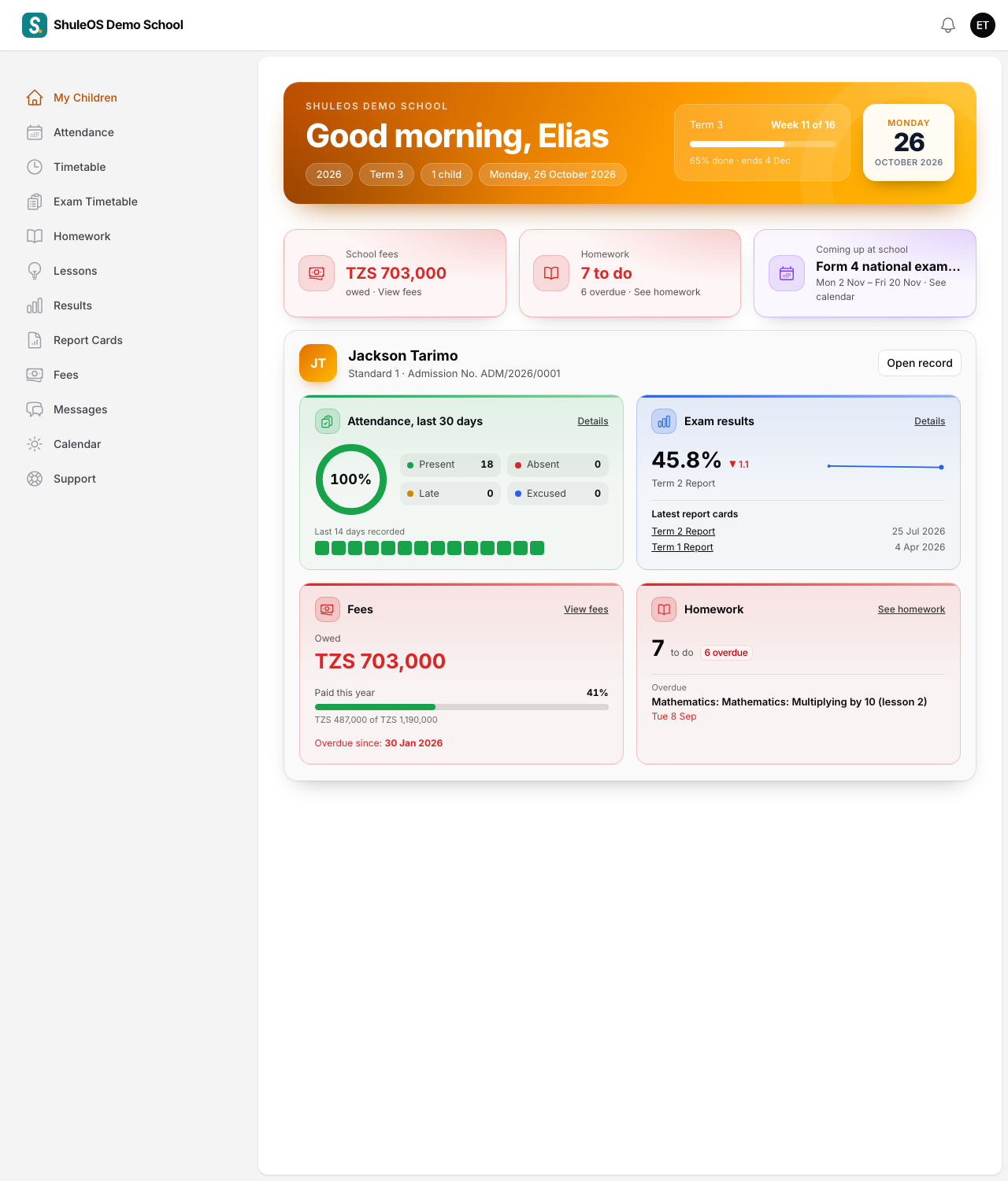
- The banner greets you and shows the school, the academic year, the term, the number of children, and how far through the term the school is (for example "Week 6 of 16").
- Three shortcuts show what matters most: whether school fees are paid or owed, how much homework is to do (and how much is overdue), and what is coming up at school.
- A card for each child shows their attendance for the last 30 days, their latest exam average and report cards, their fees, and their homework. Each card has a link to see more, and Open record opens everything about that child in one place (see Your child's record).
If the school has switched off a part of the portal, for example fees, that card and its menu item are simply not shown.
The menu
The menu on the left (behind the three-line button on a phone) has one item for each part:
| Menu item | What you see | Guide |
|---|---|---|
| My Children | This home page. | |
| Attendance | Present, absent, late and excused days. | Your child's attendance |
| Timetable, Exam Timetable | Weekly lessons, and exam dates and rooms. | Timetables |
| Homework, Lessons | What to do at home, and what was taught. | Homework and lessons |
| Results, Report Cards | Marks and released report cards. | Results and report cards |
| Fees | What is owed, payments, invoices and receipts. | Fees |
| Messages, Calendar | What the school sent you, and term dates and events. | Messages and the calendar |
If you have more than one child
Every page shows one child at a time. When you have more than one child, a row of buttons with their names appears at the top of the page. Tap a name to switch to that child. The page you are on stays the same.
The bell and signing out
The bell at the top right shows notices from the school, for example when a report card is released. A number on it means unread notices. Click your initials at the top right and choose Sign out when you finish, especially on a shared phone.
If something goes wrong
| What you see | What to do |
|---|---|
| The email, phone number or password is wrong | Check for a typing mistake. If it still fails, ask the school office to check your details and reset your password. |
| The portal is closed | The school has switched the parent portal off for now. Contact the school office. |
| A child is missing | The office has not linked the child to you. Ask them to link you to your child. |
| A menu item is missing | The school has switched that part off for parents. |
Related guides
- Your child's recordSee everything about one child in one place: their class, class teacher, attendance, latest results and report card, with tabs for the rest.
- Fees: what is owed, how to pay, invoices and receiptsSee what your child owes, when it is due and how to pay, and open the invoices, receipts and statement, all in one place.